> ## Documentation Index
> Fetch the complete documentation index at: https://docs.videodb.io/llms.txt
> Use this file to discover all available pages before exploring further.
# Subtitles Guide
> Learn to add custom styled subtitles to your videos with the SubtitleStyle class. Configure typography, colors, positioning, transformations, borders and shadows.
 ## Adding Subtitles
This guide gives you an introduction to adding `Subtitle Styles` by showing you visual outputs of the configurations available for the `SubtitleStyle` class:
Font families, sizes, spacing, and text effects
Primary colors, outlines, and background styling
Alignment and margin configuration
Scaling, rotation, and skewing effects
Border styles, outlines, and shadow depth
## 🛠️ Setup
### Installing packages
```bash Python theme={null}
pip install videodb
```
```bash Node.js theme={null}
npm install videodb
```
### API Keys
Before proceeding, ensure access to [VideoDB](https://videodb.io)
Get your API key from [VideoDB Console](https://console.videodb.io/). ( Free for first 50 uploads, No credit card required )
### Connect to VideoDB
```python Python theme={null}
import videodb
# Set your API key
api_key = "your_api_key"
# Connect to VideoDB
conn = videodb.connect(api_key=api_key)
coll = conn.get_collection()
```
```javascript Node.js theme={null}
import { connect } from 'videodb';
const conn = connect();
const coll = await conn.getCollection();
```
### Upload Video
Upload a base video to add subtitle. For this guide, we'll use following video
```python Python theme={null}
video = coll.upload(url="https://www.youtube.com/watch?v=il39Ks4mV9g")
video.play()
```
```javascript Node.js theme={null}
const video = await coll.uploadURL({ url: "https://www.youtube.com/watch?v=il39Ks4mV9g" });
video.play();
```
You can upload from your local file system too by passing `file_path` in `upload()`
## Index Spoken Words
First, we need to index the video using `video.index_spoken_words()` function. This ensures the availability of the transcript. Without this step VideoDB wouldn't be able to add captions to any video.
```python Python theme={null}
video.index_spoken_words()
```
```javascript Node.js theme={null}
await video.indexSpokenWords();
```
## Default Subtitles
To add subtitles to your video you can use `video.add_subtitle()`.
This method returns a streaming link that you can play using `play_stream()` method
```python Python theme={null}
from videodb import play_stream
# Add Subtitle to Video
stream_url = video.add_subtitle()
# Play stream
play_stream(stream_url)
```
```javascript Node.js theme={null}
// Add Subtitle to Video
const streamUrl = await video.addSubtitle();
// Play stream
console.log(streamUrl);
```
## Custom Styled Subtitles
To customise the style of subtitle, pass `SubtitleStyle()` with configured styles to `video.add_subtitle()`
View API Reference for `SubtitleStyle` class 💅
### 1. Typography and Style
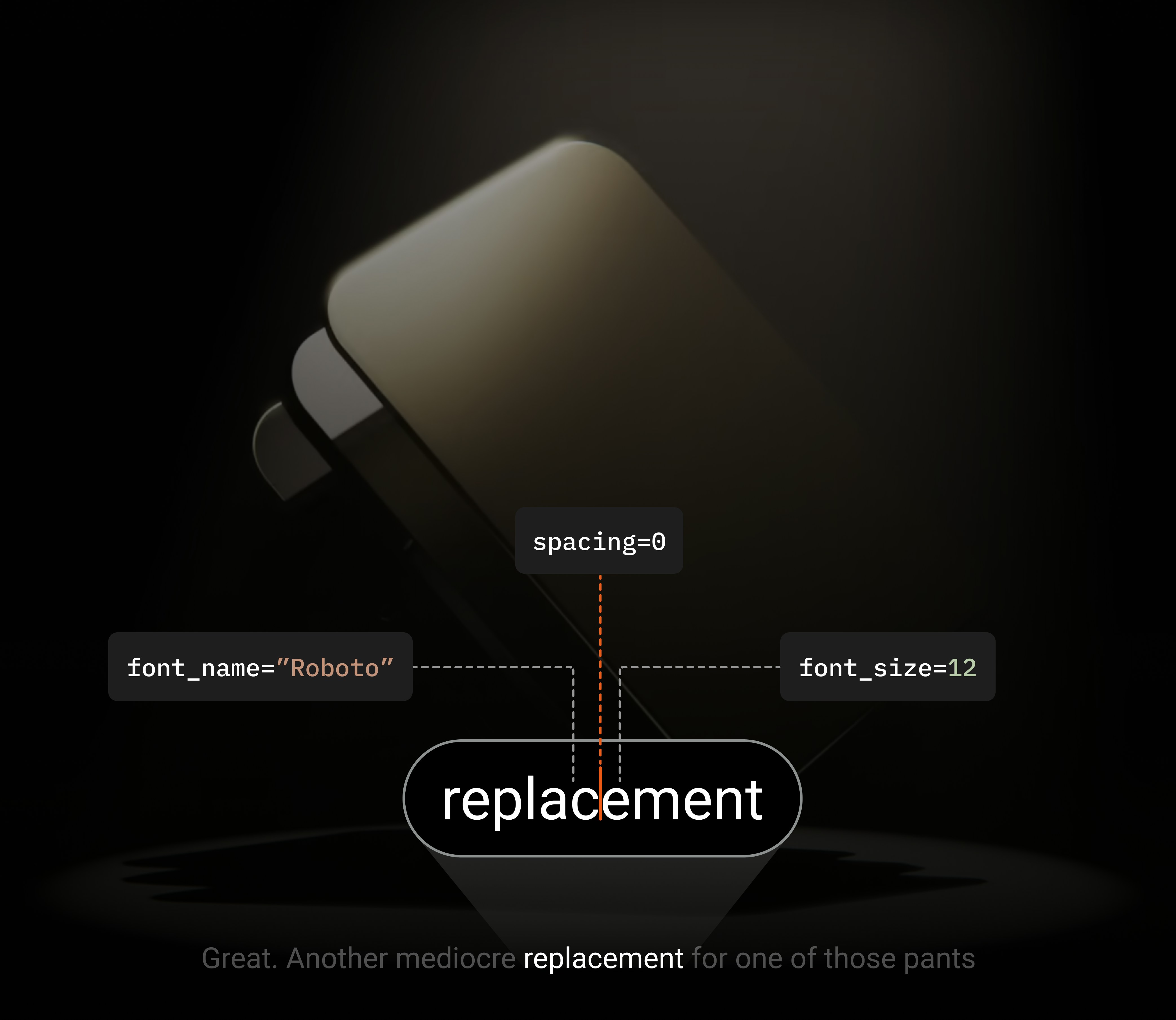
Configure Typography of the Subtitle by passing following parameters to `SubtitleStyle()` class
* `font_name` : The name of the font to use for the subtitles.
* `font_size` : The size(px) of the font
* `spacing` : Spacing(px) between characters
* `bold` : Set to `True` for bold text
* `italic` : Set to `True` for italic text
* `underline` : Set to `True` for underlined text
* `strike_out` : Set to `True` for strike-through text
## Adding Subtitles
This guide gives you an introduction to adding `Subtitle Styles` by showing you visual outputs of the configurations available for the `SubtitleStyle` class:
Font families, sizes, spacing, and text effects
Primary colors, outlines, and background styling
Alignment and margin configuration
Scaling, rotation, and skewing effects
Border styles, outlines, and shadow depth
## 🛠️ Setup
### Installing packages
```bash Python theme={null}
pip install videodb
```
```bash Node.js theme={null}
npm install videodb
```
### API Keys
Before proceeding, ensure access to [VideoDB](https://videodb.io)
Get your API key from [VideoDB Console](https://console.videodb.io/). ( Free for first 50 uploads, No credit card required )
### Connect to VideoDB
```python Python theme={null}
import videodb
# Set your API key
api_key = "your_api_key"
# Connect to VideoDB
conn = videodb.connect(api_key=api_key)
coll = conn.get_collection()
```
```javascript Node.js theme={null}
import { connect } from 'videodb';
const conn = connect();
const coll = await conn.getCollection();
```
### Upload Video
Upload a base video to add subtitle. For this guide, we'll use following video
```python Python theme={null}
video = coll.upload(url="https://www.youtube.com/watch?v=il39Ks4mV9g")
video.play()
```
```javascript Node.js theme={null}
const video = await coll.uploadURL({ url: "https://www.youtube.com/watch?v=il39Ks4mV9g" });
video.play();
```
You can upload from your local file system too by passing `file_path` in `upload()`
## Index Spoken Words
First, we need to index the video using `video.index_spoken_words()` function. This ensures the availability of the transcript. Without this step VideoDB wouldn't be able to add captions to any video.
```python Python theme={null}
video.index_spoken_words()
```
```javascript Node.js theme={null}
await video.indexSpokenWords();
```
## Default Subtitles
To add subtitles to your video you can use `video.add_subtitle()`.
This method returns a streaming link that you can play using `play_stream()` method
```python Python theme={null}
from videodb import play_stream
# Add Subtitle to Video
stream_url = video.add_subtitle()
# Play stream
play_stream(stream_url)
```
```javascript Node.js theme={null}
// Add Subtitle to Video
const streamUrl = await video.addSubtitle();
// Play stream
console.log(streamUrl);
```
## Custom Styled Subtitles
To customise the style of subtitle, pass `SubtitleStyle()` with configured styles to `video.add_subtitle()`
View API Reference for `SubtitleStyle` class 💅
### 1. Typography and Style
Configure Typography of the Subtitle by passing following parameters to `SubtitleStyle()` class
* `font_name` : The name of the font to use for the subtitles.
* `font_size` : The size(px) of the font
* `spacing` : Spacing(px) between characters
* `bold` : Set to `True` for bold text
* `italic` : Set to `True` for italic text
* `underline` : Set to `True` for underlined text
* `strike_out` : Set to `True` for strike-through text
 ```python Python theme={null}
from videodb import SubtitleStyle, play_stream
stream_url = video.add_subtitle(
SubtitleStyle(
font_name="Roboto",
font_size=12,
spacing=0,
bold=False,
italic=False,
underline=False,
strike_out=False
)
)
play_stream(stream_url)
```
```javascript Node.js theme={null}
// Note: SubtitleStyle configuration in Node.js uses config object
const streamUrl = await video.addSubtitle({
fontName: "Roboto",
fontSize: 12,
spacing: 0,
bold: false,
italic: false,
underline: false,
strikeout: false
});
console.log(streamUrl);
```
### 2. Color and Effects
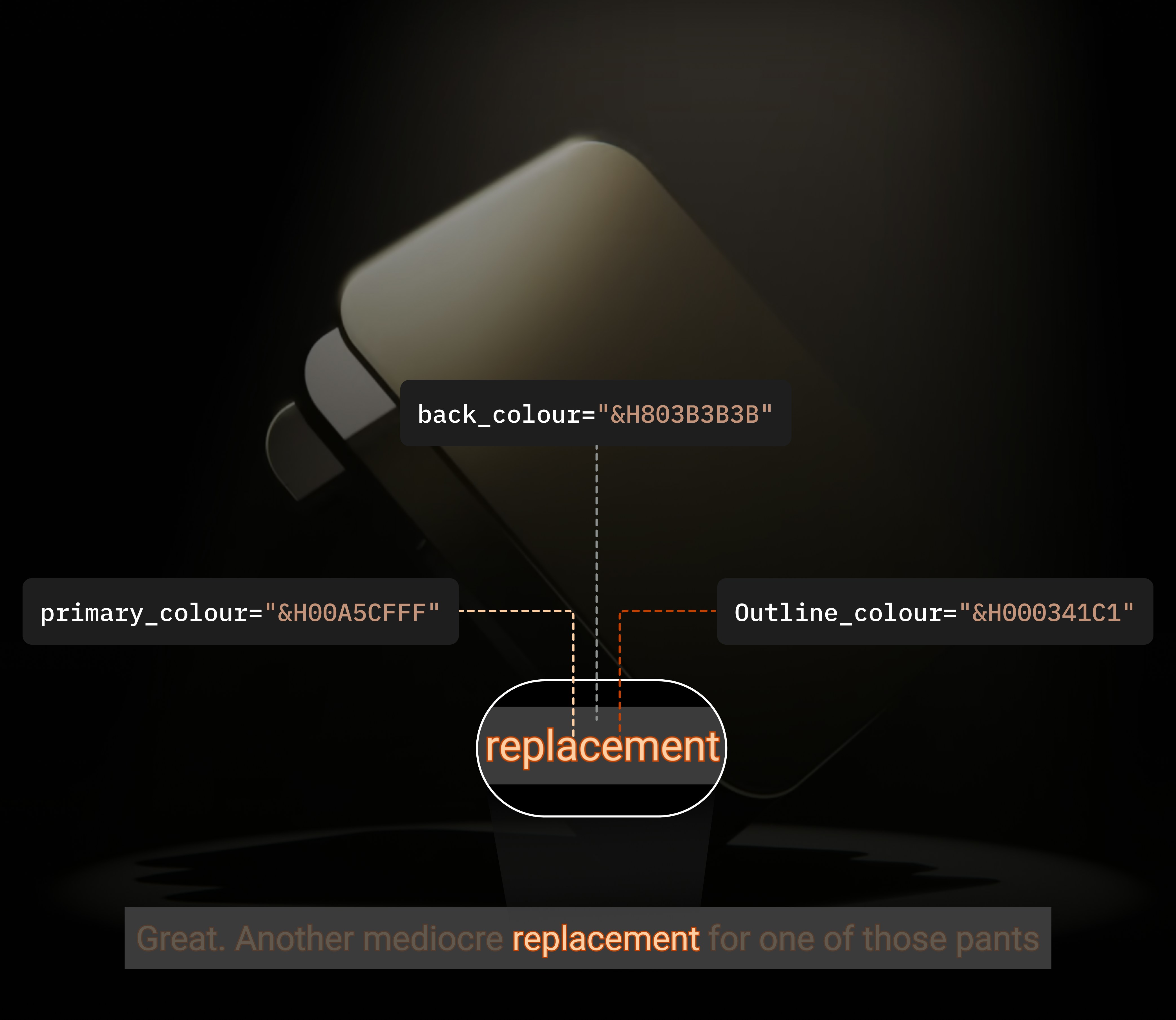
Configure color of Subtitle by passing following parameters to `SubtitleStyle()` class
* `primary_colour` : The color of the main subtitle text.
* **`secondary_colour`**:\*\* The color used for karaoke or secondary effects.
* **`outline_colour`**:\*\* The color of the outline of the text.
* `back_colour` : The color of the subtitle background.
**Format of Color**
`SubtitleStyle` accepts colors in the `&HBBGGRR` hexadecimal format, where the sequence represents the blue, green, and red components.
`&H` prefix is required in this color format.
And when transparency is needed, an alpha value is placed at the beginning, yielding `&HAABBGGRR`.
```python Python theme={null}
from videodb import SubtitleStyle, play_stream
stream_url = video.add_subtitle(
SubtitleStyle(
font_name="Roboto",
font_size=12,
spacing=0,
bold=False,
italic=False,
underline=False,
strike_out=False
)
)
play_stream(stream_url)
```
```javascript Node.js theme={null}
// Note: SubtitleStyle configuration in Node.js uses config object
const streamUrl = await video.addSubtitle({
fontName: "Roboto",
fontSize: 12,
spacing: 0,
bold: false,
italic: false,
underline: false,
strikeout: false
});
console.log(streamUrl);
```
### 2. Color and Effects
Configure color of Subtitle by passing following parameters to `SubtitleStyle()` class
* `primary_colour` : The color of the main subtitle text.
* **`secondary_colour`**:\*\* The color used for karaoke or secondary effects.
* **`outline_colour`**:\*\* The color of the outline of the text.
* `back_colour` : The color of the subtitle background.
**Format of Color**
`SubtitleStyle` accepts colors in the `&HBBGGRR` hexadecimal format, where the sequence represents the blue, green, and red components.
`&H` prefix is required in this color format.
And when transparency is needed, an alpha value is placed at the beginning, yielding `&HAABBGGRR`.
 ```python Python theme={null}
from videodb import SubtitleStyle
stream_url = video.add_subtitle(
SubtitleStyle(
primary_colour="&H00A5CFFF",
secondary_colour="&H00FFFF00",
outline_colour="&H000341C1",
back_colour="&H803B3B3B"
)
)
play_stream(stream_url)
```
```javascript Node.js theme={null}
const streamUrl = await video.addSubtitle({
primaryColour: "&H00A5CFFF",
secondaryColour: "&H00FFFF00",
outlineColour: "&H000341C1",
backColour: "&H803B3B3B"
});
console.log(streamUrl);
```
### 3. Position and Margins
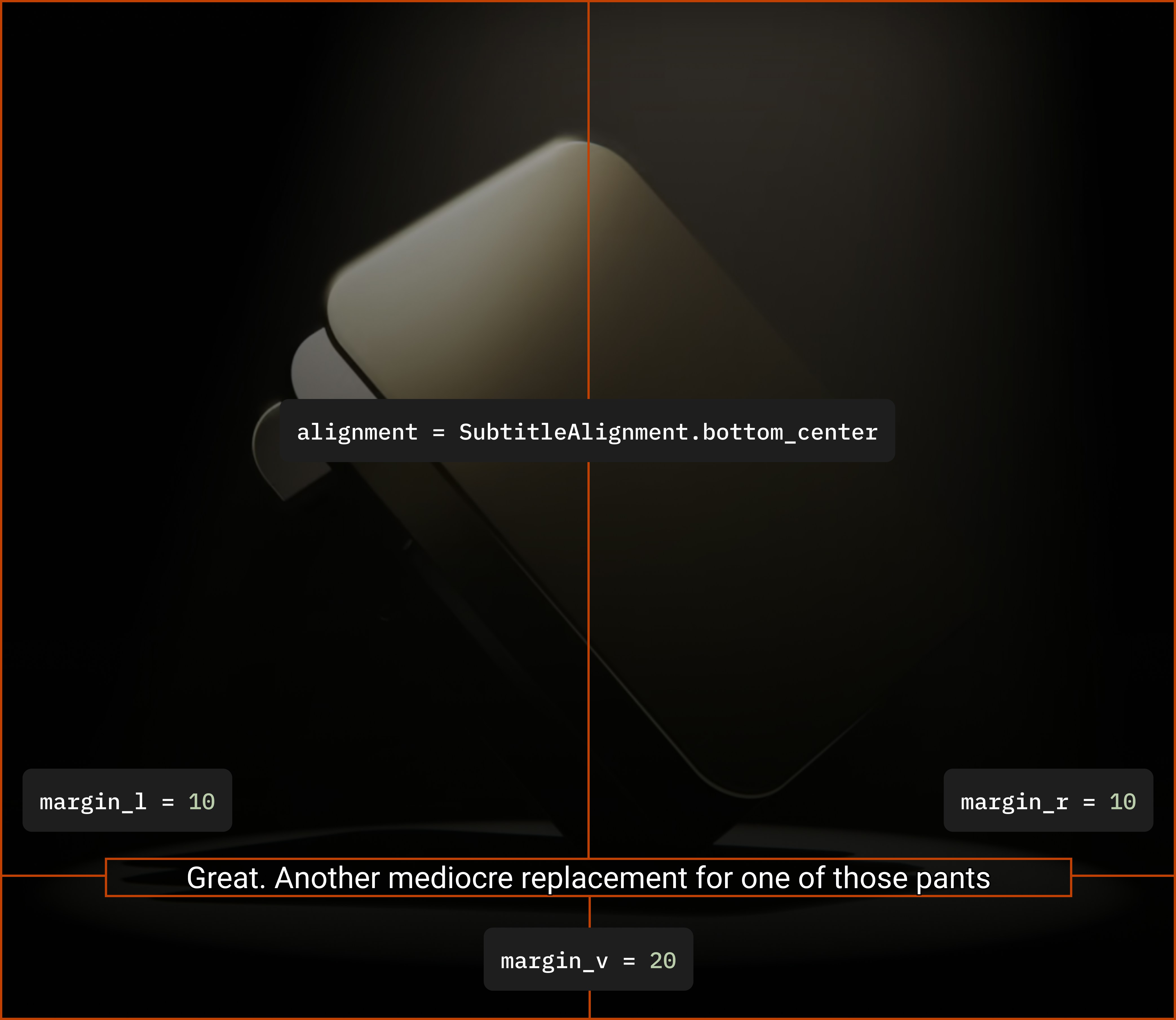
Configure alignment and position of Subtitle by passing following parameters to `SubtitleStyle()` class
* `alignment` : Alignment of subtitle. Accepts a value a type `SubtitleAlignment`
* `margin_l` : Sets margin area on left side of Subtitle box
* `margin_r` : Sets margin area on right side of Subtitle box
* `margin_v` : Sets margin area of top and bottom of Subtitle box
View API Reference to know more about `SubtitleAlignment`
```python Python theme={null}
from videodb import SubtitleStyle
stream_url = video.add_subtitle(
SubtitleStyle(
primary_colour="&H00A5CFFF",
secondary_colour="&H00FFFF00",
outline_colour="&H000341C1",
back_colour="&H803B3B3B"
)
)
play_stream(stream_url)
```
```javascript Node.js theme={null}
const streamUrl = await video.addSubtitle({
primaryColour: "&H00A5CFFF",
secondaryColour: "&H00FFFF00",
outlineColour: "&H000341C1",
backColour: "&H803B3B3B"
});
console.log(streamUrl);
```
### 3. Position and Margins
Configure alignment and position of Subtitle by passing following parameters to `SubtitleStyle()` class
* `alignment` : Alignment of subtitle. Accepts a value a type `SubtitleAlignment`
* `margin_l` : Sets margin area on left side of Subtitle box
* `margin_r` : Sets margin area on right side of Subtitle box
* `margin_v` : Sets margin area of top and bottom of Subtitle box
View API Reference to know more about `SubtitleAlignment`
 ```python Python theme={null}
from videodb import SubtitleStyle, SubtitleAlignment
stream_url = video.add_subtitle(
SubtitleStyle(
alignment=SubtitleAlignment.middle_center,
margin_l=10,
margin_r=10,
margin_v=20
)
)
play_stream(stream_url)
```
```javascript Node.js theme={null}
import { SubtitleAlignment } from 'videodb';
const streamUrl = await video.addSubtitle({
alignment: SubtitleAlignment.middleCenter,
marginL: 10,
marginR: 10,
marginV: 20
});
console.log(streamUrl);
```
### 4. Text Transformation
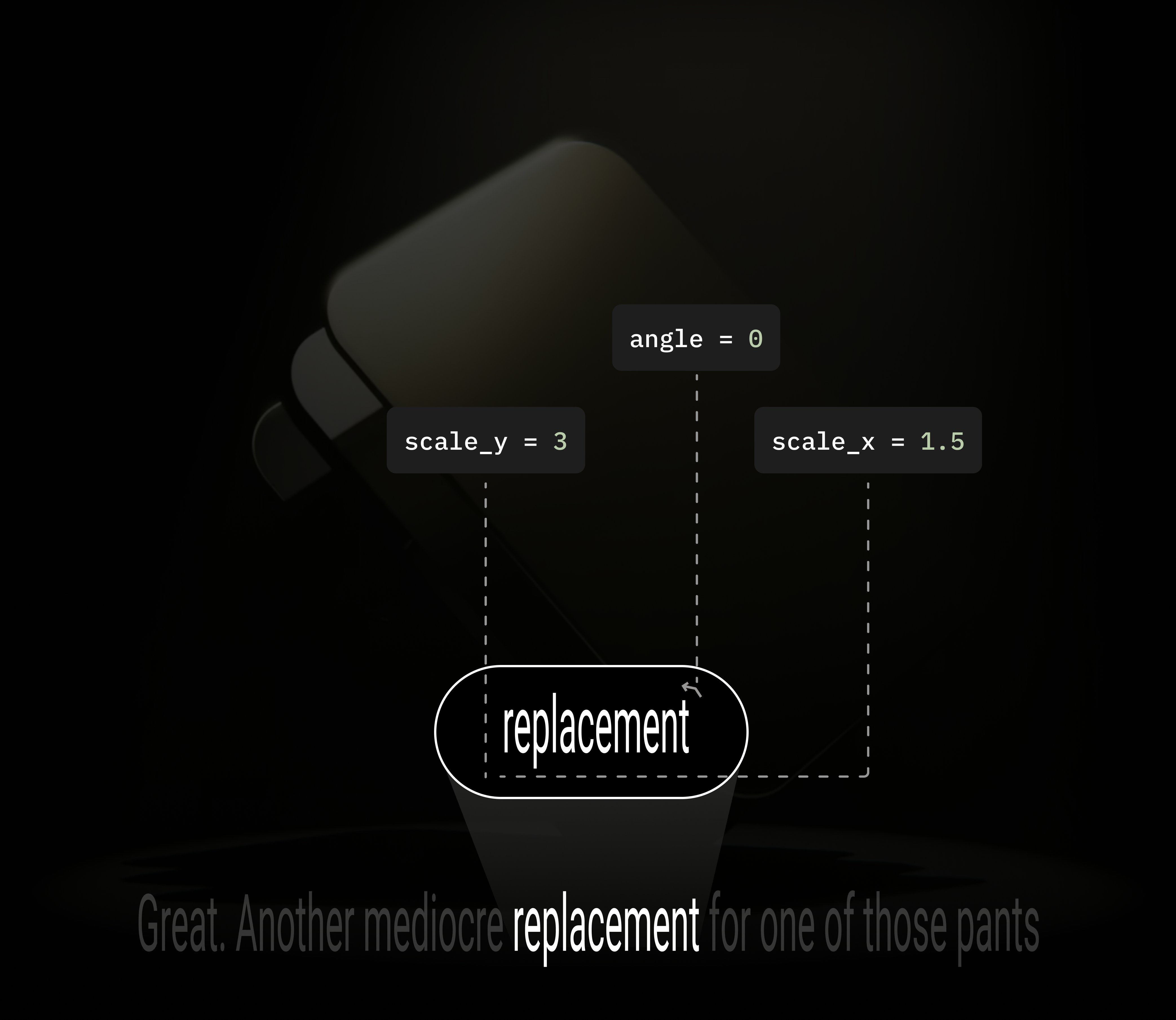
Transform the text size and spacing by passing following parameters to `SubtitleStyle()` class
* `scale_x` : Factor for scaling of the font horizontally
* `scale_y` : Factor for scaling of the font vertically
* `angle` : Rotation angle(degress) of the text
```python Python theme={null}
from videodb import SubtitleStyle, SubtitleAlignment
stream_url = video.add_subtitle(
SubtitleStyle(
alignment=SubtitleAlignment.middle_center,
margin_l=10,
margin_r=10,
margin_v=20
)
)
play_stream(stream_url)
```
```javascript Node.js theme={null}
import { SubtitleAlignment } from 'videodb';
const streamUrl = await video.addSubtitle({
alignment: SubtitleAlignment.middleCenter,
marginL: 10,
marginR: 10,
marginV: 20
});
console.log(streamUrl);
```
### 4. Text Transformation
Transform the text size and spacing by passing following parameters to `SubtitleStyle()` class
* `scale_x` : Factor for scaling of the font horizontally
* `scale_y` : Factor for scaling of the font vertically
* `angle` : Rotation angle(degress) of the text
 ```python Python theme={null}
from videodb import SubtitleStyle
stream_url = video.add_subtitle(
SubtitleStyle(
scale_x=1.5,
scale_y=3,
angle=0
)
)
play_stream(stream_url)
```
```javascript Node.js theme={null}
const streamUrl = await video.addSubtitle({
scaleX: 1.5,
scaleY: 3,
angle: 0
});
console.log(streamUrl);
```
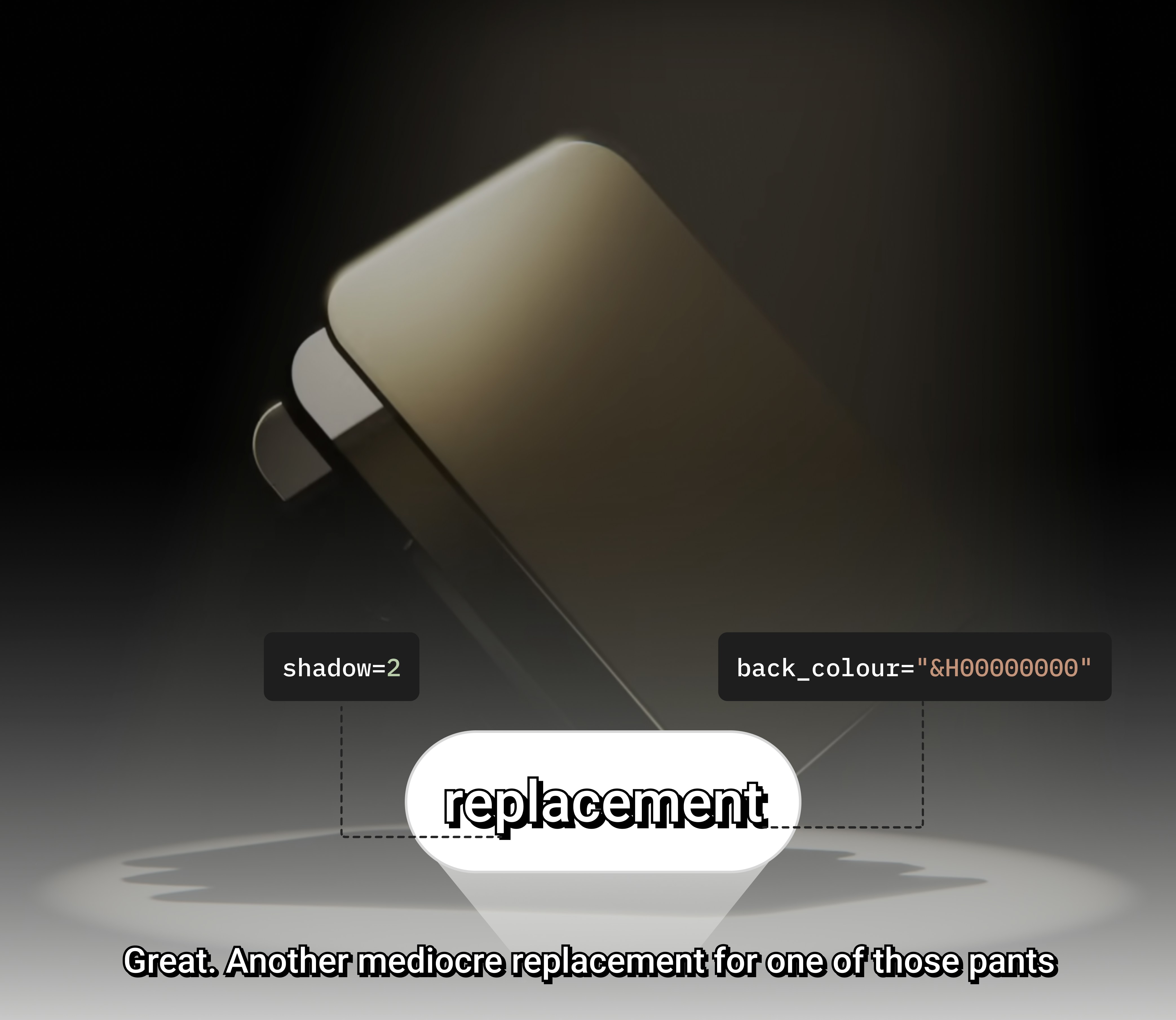
### 5. Borders and Shadow
Add border style, outline and shadow by passing following parameters to `SubtitleStyle()` class
* `border_style` : Border style of subtitle. Accepts a value a type `SubtitleBorderStyle`
* **`outline`**:\*\* The width(px) of the outline around the text.
* `shadow` : The depth(px) of the shadow behind the text
View API Reference to know more about `SubtitleBorderStyle`
```python Python theme={null}
from videodb import SubtitleStyle
stream_url = video.add_subtitle(
SubtitleStyle(
scale_x=1.5,
scale_y=3,
angle=0
)
)
play_stream(stream_url)
```
```javascript Node.js theme={null}
const streamUrl = await video.addSubtitle({
scaleX: 1.5,
scaleY: 3,
angle: 0
});
console.log(streamUrl);
```
### 5. Borders and Shadow
Add border style, outline and shadow by passing following parameters to `SubtitleStyle()` class
* `border_style` : Border style of subtitle. Accepts a value a type `SubtitleBorderStyle`
* **`outline`**:\*\* The width(px) of the outline around the text.
* `shadow` : The depth(px) of the shadow behind the text
View API Reference to know more about `SubtitleBorderStyle`
 ```python Python theme={null}
from videodb import SubtitleStyle, SubtitleBorderStyle
stream_url = video.add_subtitle(
style=SubtitleStyle(
shadow=2,
back_colour="&H00000000",
border_style=SubtitleBorderStyle.no_border
)
)
play_stream(stream_url)
```
```javascript Node.js theme={null}
import { SubtitleBorderStyle } from 'videodb';
const streamUrl = await video.addSubtitle({
shadow: 2,
backColour: "&H00000000",
borderStyle: SubtitleBorderStyle.noBorder
});
console.log(streamUrl);
```
## Next Steps
Complete API reference for SubtitleStyle parameters and configuration options.
Check out other resources and tutorials using Subtitle and Subtitle Styling.
## Get Support
If you have any questions or feedback, feel free to reach out to us:
Connect with the VideoDB community
View our open source projects
Reach out directly to our team
```python Python theme={null}
from videodb import SubtitleStyle, SubtitleBorderStyle
stream_url = video.add_subtitle(
style=SubtitleStyle(
shadow=2,
back_colour="&H00000000",
border_style=SubtitleBorderStyle.no_border
)
)
play_stream(stream_url)
```
```javascript Node.js theme={null}
import { SubtitleBorderStyle } from 'videodb';
const streamUrl = await video.addSubtitle({
shadow: 2,
backColour: "&H00000000",
borderStyle: SubtitleBorderStyle.noBorder
});
console.log(streamUrl);
```
## Next Steps
Complete API reference for SubtitleStyle parameters and configuration options.
Check out other resources and tutorials using Subtitle and Subtitle Styling.
## Get Support
If you have any questions or feedback, feel free to reach out to us:
Connect with the VideoDB community
View our open source projects
Reach out directly to our team