> ## Documentation Index
> Fetch the complete documentation index at: https://docs.videodb.io/llms.txt
> Use this file to discover all available pages before exploring further.
# Timeline Architecture
> Imagine building videos like coding - declarative, composable, and infinitely reusable. A comprehensive guide to VideoDB's code-first video editing architecture.
VideoDB Editor lets you create videos programmatically using code instead of clicking timelines. You define what you want (assets, effects, timing), and the engine handles the rendering.
This guide is your complete conceptual introduction. By the end, you’ll understand how to compose anything from simple clips to complex multi-layer productions - all through code.
## Why Code-First Video Editing?
Traditional video editors are built for one-off productions. But what if you need to:
* Generate 100 personalized videos from a template
* Build a TikTok content pipeline that runs daily
* Create video variations for A/B testing
* Automate highlight reels from live streams
**Code changes everything:**
* **Reusability** – One video asset, infinite variations
* **Scalability** – Loop over data to generate hundreds of videos
* **Version control** – Git-track your compositions
* **Automation** – Integrate with AI, databases, APIs
## The 4-Layer Architecture
VideoDB Editor uses a hierarchy where each layer has one job. Understanding this structure is the key to mastering composition:
**Asset → Clip → Track → Timeline**
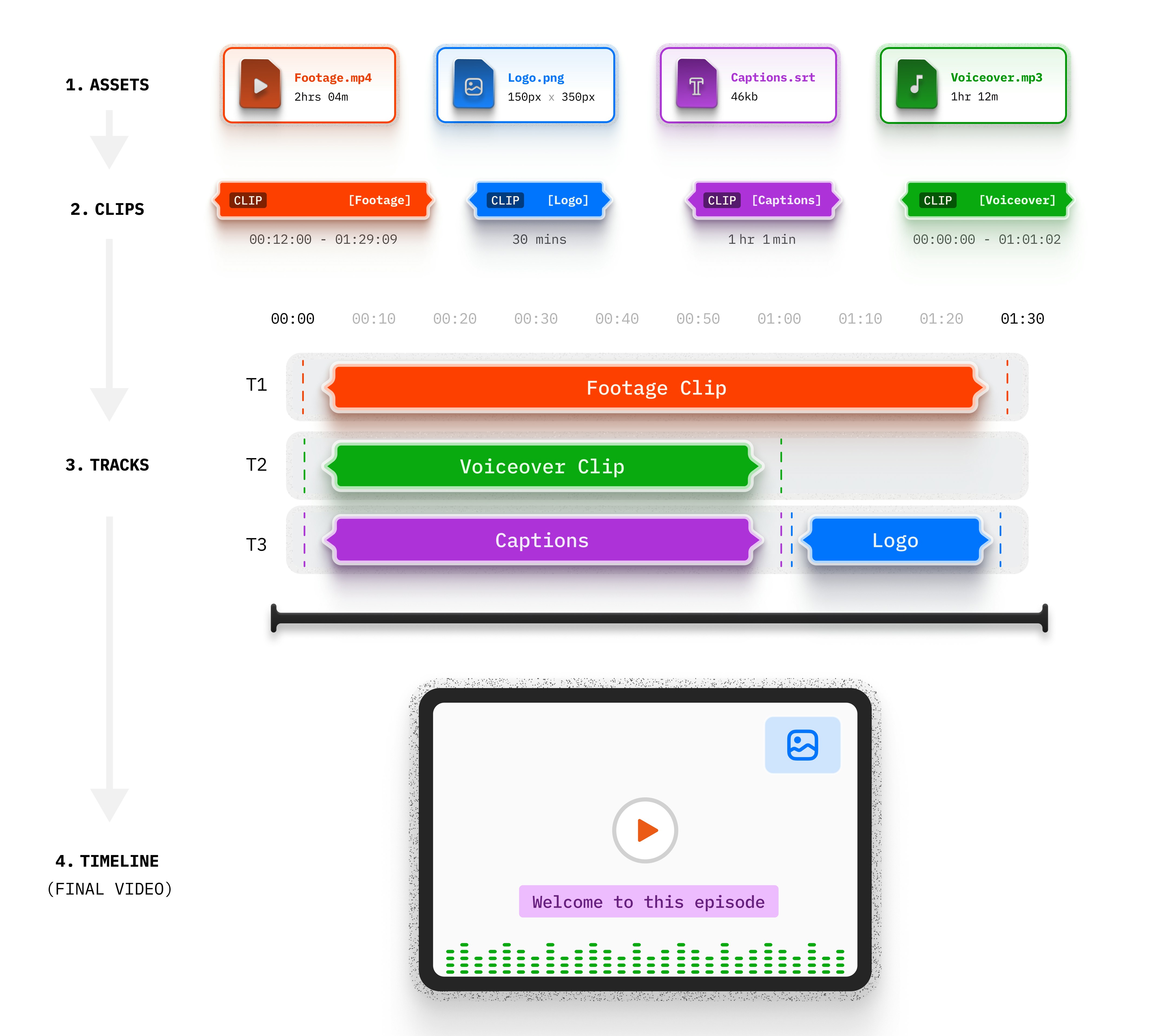 Let's walk through each layer using the simplest possible example: **one video asset playing for 10 seconds**. This is the "Hello World" of Editor - understanding this foundation lets you build anything.
### Installing `VideoDB` in your environment
`VideoDB` is available as a [Python package](https://pypi.org/project/videodb) and [Node.js package](https://www.npmjs.com/package/videodb).
```bash Python theme={null}
pip install videodb
```
```bash Node.js theme={null}
npm install videodb
```
## Layer 1: Assets – Your Raw Materials
**Assets are your content library.** They reference media that exists in your VideoDB collection but don’t define how or when it plays.
### VideoAsset
Your main video content. Each `VideoAsset` points to a video file via its ID.
**Key parameters:**
* `id` (required) – The VideoDB media ID
* `start` (optional) – Trim point in seconds (e.g., `start=10` skips first 10s of source)
* `volume` (optional) – Audio level: `0.0` (muted) to `2.0` (200%), default `1.0`
* `crop` (optional) – Crop the sides of an asset by a relative amount. The size of the crop is specified using a scale between `0` and `1`. A left crop of `0.5` will crop half of the asset from the left, a top crop of `0.25` will crop the top by quarter of the asset.
Real example:
```python Python theme={null}
from videodb.editor import Timeline, Track, Clip, VideoAsset
video_asset = VideoAsset(
# Create a VideoAsset pointing to a video file in your collection
id=video.id,
start=0,
volume=1
)
# Ready to use in a Clip
```
```javascript Node.js theme={null}
import { VideoAsset } from 'videodb';
const videoAsset = new VideoAsset(video.id, {
// Create a VideoAsset pointing to a video file in your collection
start: 0,
volume: 1
});
// Ready to use in a Clip
```
This says: "Use the video from your VideoDB collection, start from the beginning (`start=0`), and keep original volume (`volume=1`)."
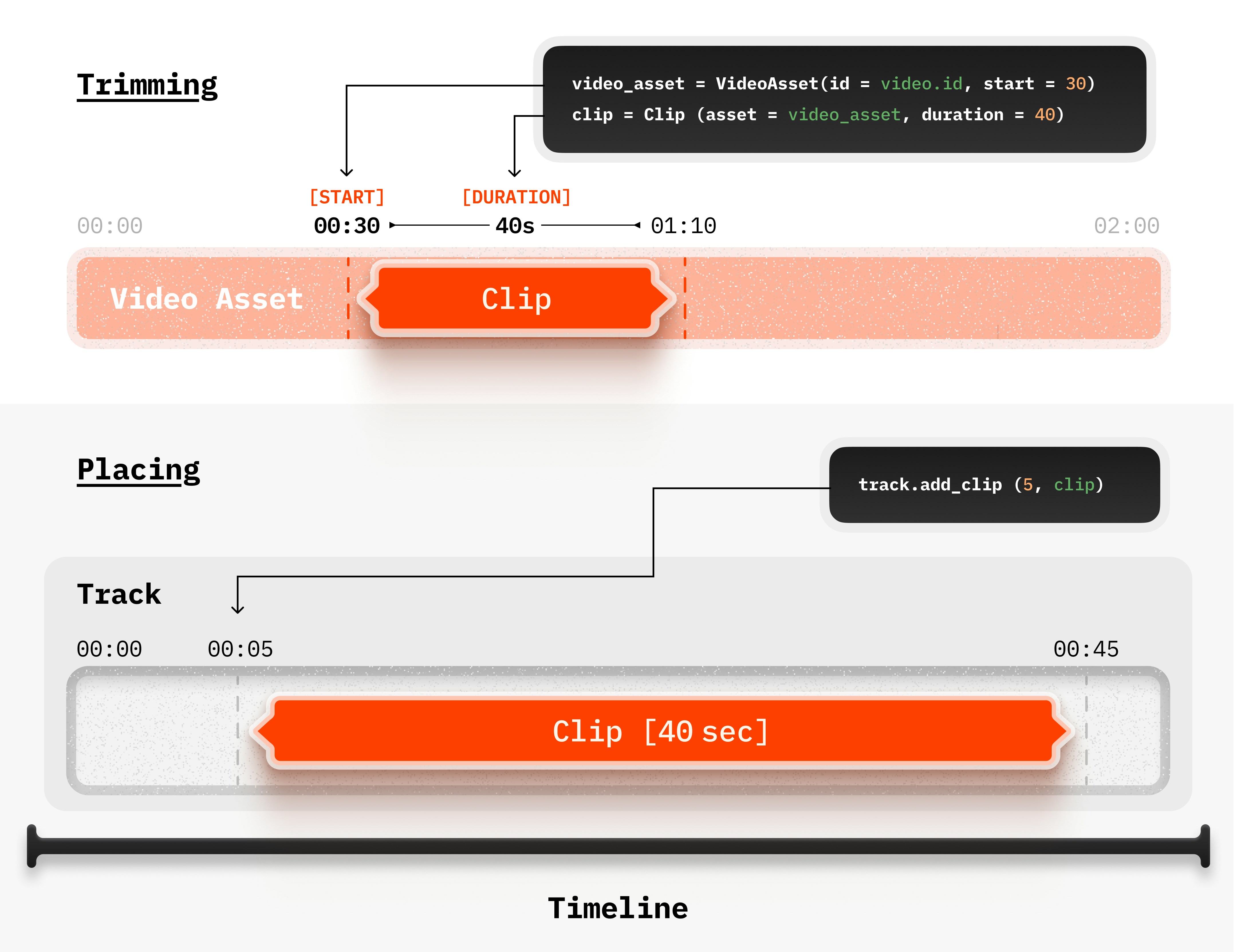
**Important distinction:** `VideoAsset.start` trims the *source file*. Where it appears on the timeline is controlled later at the Track layer. This "double start" concept is critical - we'll explore it more in Layer 3 (Tracks).
### AudioAsset
Background music, voiceovers, or sound effects. Works exactly like `VideoAsset`.
**Key parameters:**
* `id` (required) – The VideoDB audio file ID
* `start` (optional) – Same trim behavior as VideoAsset
* `volume` (optional) – `0.0`-`2.0` range (0.2 = 20% volume)
### ImageAsset
Logos, watermarks, title cards, or static backgrounds.
**Key parameters:**
* `id` (required) – The VideoDB image ID
Images are static by nature - duration, position, and size are controlled at the [Clip layer](/pages/act/programmable-editing/clip-parameters).
### TextAsset
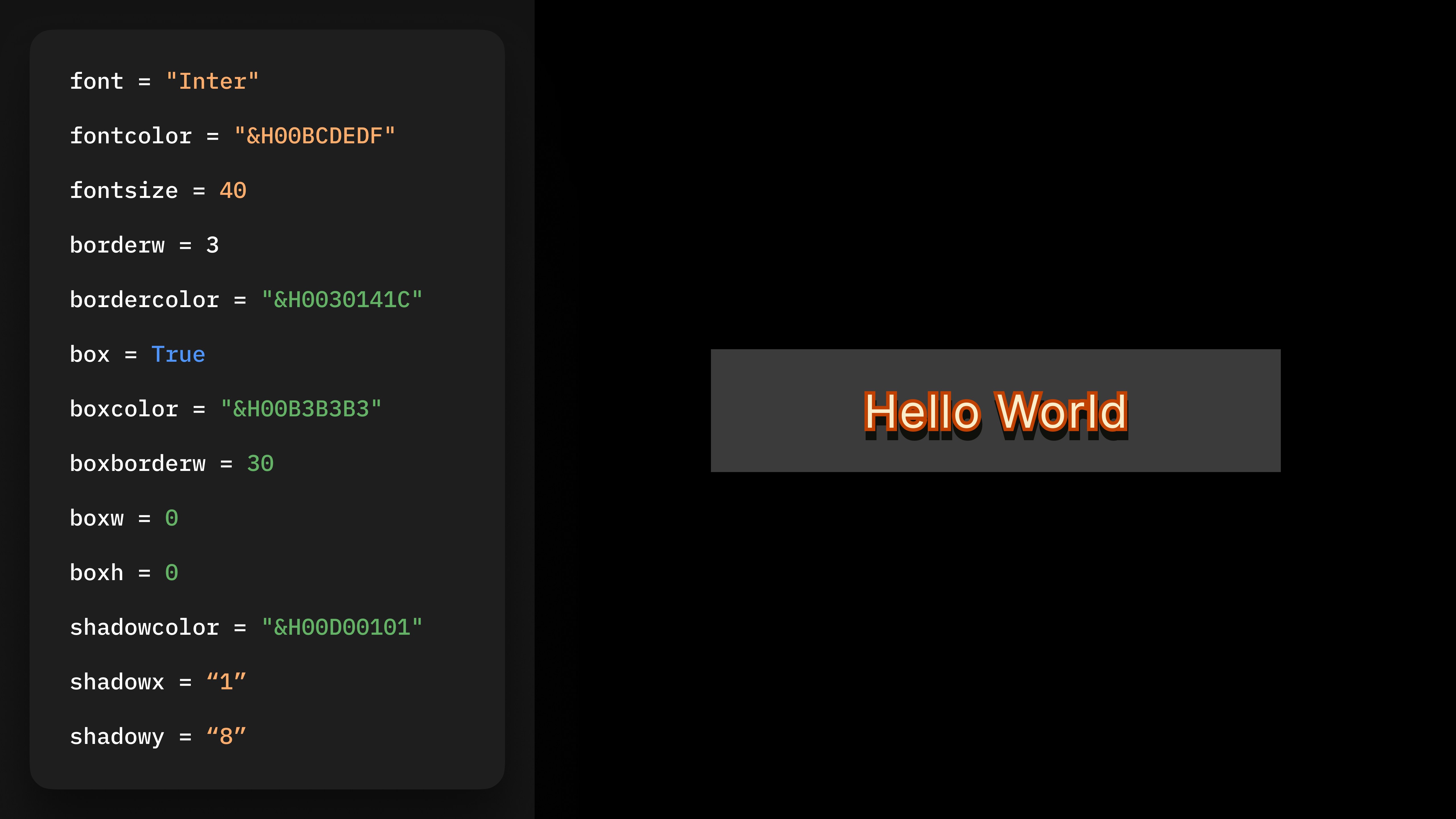
Custom text overlays with full typography control.
**Key parameters:**
* `text` (required) – The string to display
* `font` (optional) – Font object with family, size, color, opacity
* `border`, `shadow`, `background` (optional) – Styling objects
* `alignment` (optional) – Position on screen
* `tabsize` (optional) – Tab size for text formatting
* `line_spacing` (optional) – Spacing between lines
* `width` (optional) – Width of text box in pixels
* `height` (optional) – Height of text box in pixels
**Color format:** ASS-style `&HAABBGGRR` in hex (e.g., `&H00FFFFFF` = white)
Let's walk through each layer using the simplest possible example: **one video asset playing for 10 seconds**. This is the "Hello World" of Editor - understanding this foundation lets you build anything.
### Installing `VideoDB` in your environment
`VideoDB` is available as a [Python package](https://pypi.org/project/videodb) and [Node.js package](https://www.npmjs.com/package/videodb).
```bash Python theme={null}
pip install videodb
```
```bash Node.js theme={null}
npm install videodb
```
## Layer 1: Assets – Your Raw Materials
**Assets are your content library.** They reference media that exists in your VideoDB collection but don’t define how or when it plays.
### VideoAsset
Your main video content. Each `VideoAsset` points to a video file via its ID.
**Key parameters:**
* `id` (required) – The VideoDB media ID
* `start` (optional) – Trim point in seconds (e.g., `start=10` skips first 10s of source)
* `volume` (optional) – Audio level: `0.0` (muted) to `2.0` (200%), default `1.0`
* `crop` (optional) – Crop the sides of an asset by a relative amount. The size of the crop is specified using a scale between `0` and `1`. A left crop of `0.5` will crop half of the asset from the left, a top crop of `0.25` will crop the top by quarter of the asset.
Real example:
```python Python theme={null}
from videodb.editor import Timeline, Track, Clip, VideoAsset
video_asset = VideoAsset(
# Create a VideoAsset pointing to a video file in your collection
id=video.id,
start=0,
volume=1
)
# Ready to use in a Clip
```
```javascript Node.js theme={null}
import { VideoAsset } from 'videodb';
const videoAsset = new VideoAsset(video.id, {
// Create a VideoAsset pointing to a video file in your collection
start: 0,
volume: 1
});
// Ready to use in a Clip
```
This says: "Use the video from your VideoDB collection, start from the beginning (`start=0`), and keep original volume (`volume=1`)."
**Important distinction:** `VideoAsset.start` trims the *source file*. Where it appears on the timeline is controlled later at the Track layer. This "double start" concept is critical - we'll explore it more in Layer 3 (Tracks).
### AudioAsset
Background music, voiceovers, or sound effects. Works exactly like `VideoAsset`.
**Key parameters:**
* `id` (required) – The VideoDB audio file ID
* `start` (optional) – Same trim behavior as VideoAsset
* `volume` (optional) – `0.0`-`2.0` range (0.2 = 20% volume)
### ImageAsset
Logos, watermarks, title cards, or static backgrounds.
**Key parameters:**
* `id` (required) – The VideoDB image ID
Images are static by nature - duration, position, and size are controlled at the [Clip layer](/pages/act/programmable-editing/clip-parameters).
### TextAsset
Custom text overlays with full typography control.
**Key parameters:**
* `text` (required) – The string to display
* `font` (optional) – Font object with family, size, color, opacity
* `border`, `shadow`, `background` (optional) – Styling objects
* `alignment` (optional) – Position on screen
* `tabsize` (optional) – Tab size for text formatting
* `line_spacing` (optional) – Spacing between lines
* `width` (optional) – Width of text box in pixels
* `height` (optional) – Height of text box in pixels
**Color format:** ASS-style `&HAABBGGRR` in hex (e.g., `&H00FFFFFF` = white)
 ### CaptionAsset
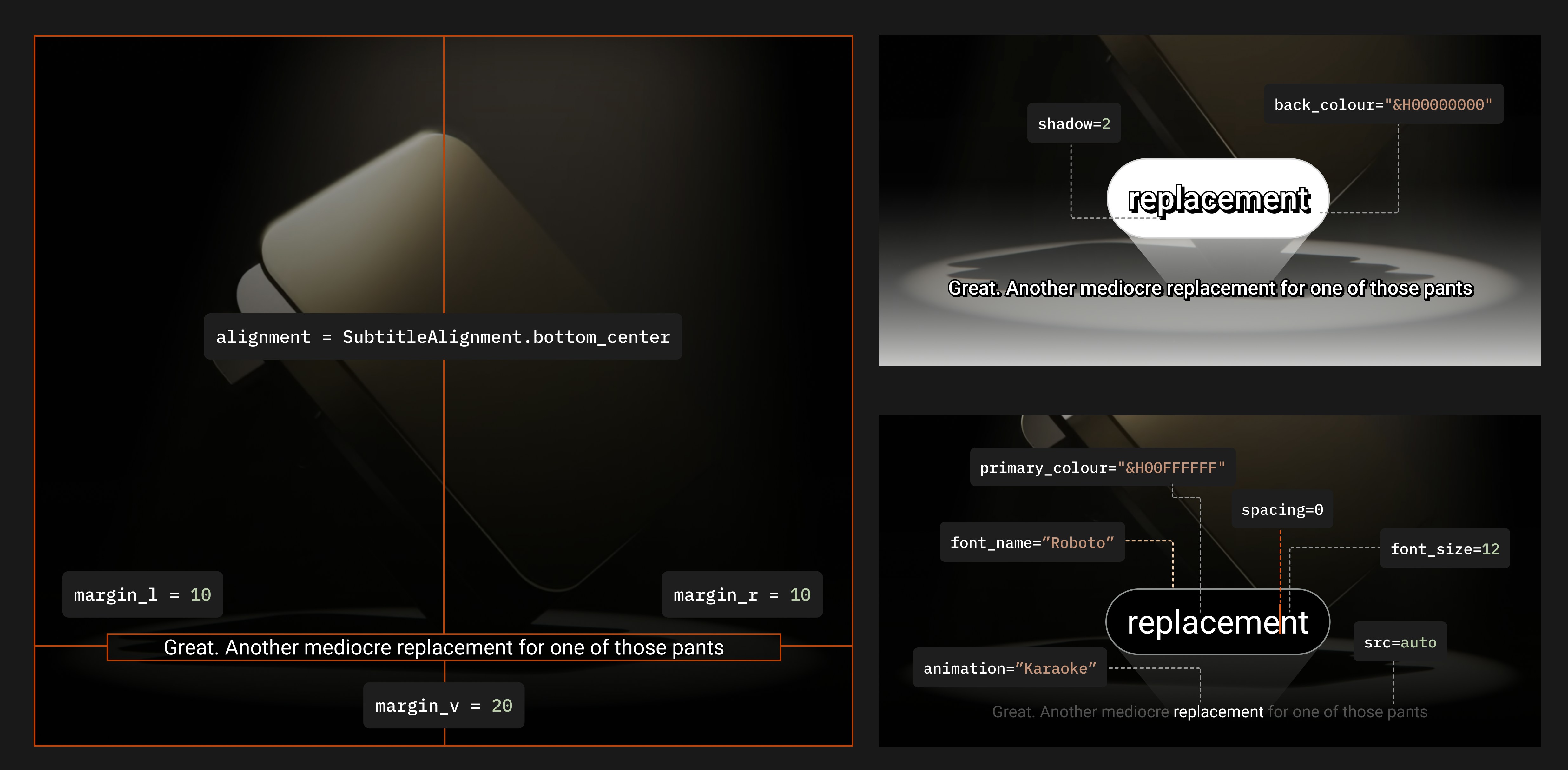
Auto-generated subtitles synced to speech. **This is where VideoDB gets magical.**
**Important:** `CaptionAsset` is a separate asset type from `TextAsset`. While `TextAsset` is for custom text overlays you write yourself, `CaptionAsset` automatically generates subtitles from video speech.
**Key parameters:**
* `src` (required) – Set to `"auto"` to generate captions from video speech
* `animation` (optional) – How words appear: `reveal`, `karaoke`, `supersize`, `box_highlight`, `impact`, `color_highlight`
* `primary_color`, `secondary_color` (optional) – ASS-style colors
* `font`, positioning, border, shadow styling (optional)
**Critical requirement:** Before using `CaptionAsset(src="auto")`, you must call `video.index_spoken_words()` on the source video. This indexes the speech for auto-caption generation. Without it, captions won't generate.
### CaptionAsset
Auto-generated subtitles synced to speech. **This is where VideoDB gets magical.**
**Important:** `CaptionAsset` is a separate asset type from `TextAsset`. While `TextAsset` is for custom text overlays you write yourself, `CaptionAsset` automatically generates subtitles from video speech.
**Key parameters:**
* `src` (required) – Set to `"auto"` to generate captions from video speech
* `animation` (optional) – How words appear: `reveal`, `karaoke`, `supersize`, `box_highlight`, `impact`, `color_highlight`
* `primary_color`, `secondary_color` (optional) – ASS-style colors
* `font`, positioning, border, shadow styling (optional)
**Critical requirement:** Before using `CaptionAsset(src="auto")`, you must call `video.index_spoken_words()` on the source video. This indexes the speech for auto-caption generation. Without it, captions won't generate.
 ### Supported Fonts for Text and Caption Assets
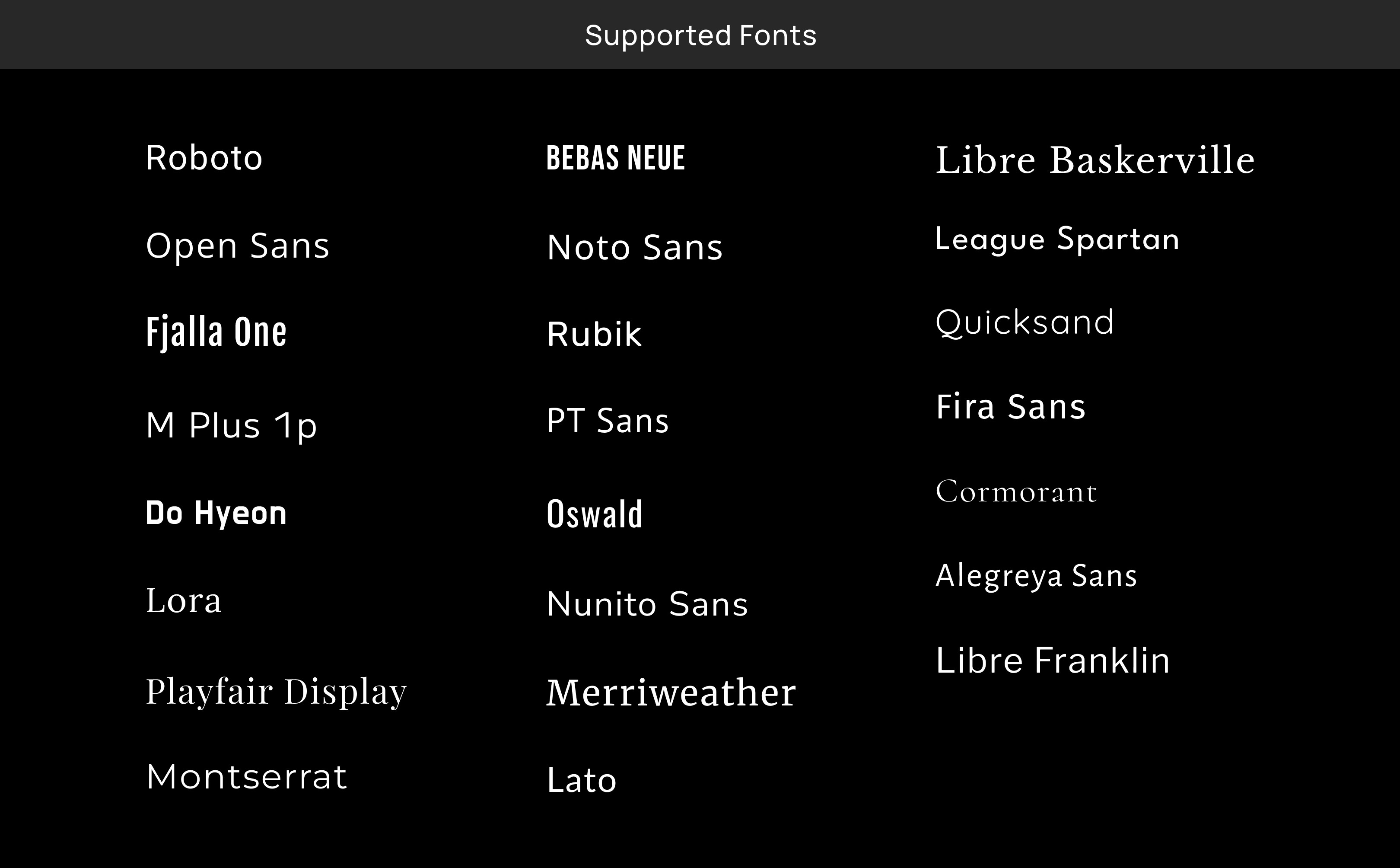 **Supported Indic fonts:**
* Noto Sans Kannada
* Noto Sans Devanagari
* Noto Sans Gujarati
* Noto Sans Gurmukhi
**Recap:** Assets answer "What content exists?" They don't yet define timing, size, position, or effects. That's the Clip layer's job.
## Layer 2: Clips – The Presentation Engine
**Clips wrap Assets and define** ***how*** **and** ***how long*** **they appear.** This is your effects layer.
**Supported Indic fonts:**
* Noto Sans Kannada
* Noto Sans Devanagari
* Noto Sans Gujarati
* Noto Sans Gurmukhi
**Recap:** Assets answer "What content exists?" They don't yet define timing, size, position, or effects. That's the Clip layer's job.
## Layer 2: Clips – The Presentation Engine
**Clips wrap Assets and define** ***how*** **and** ***how long*** **they appear.** This is your effects layer.
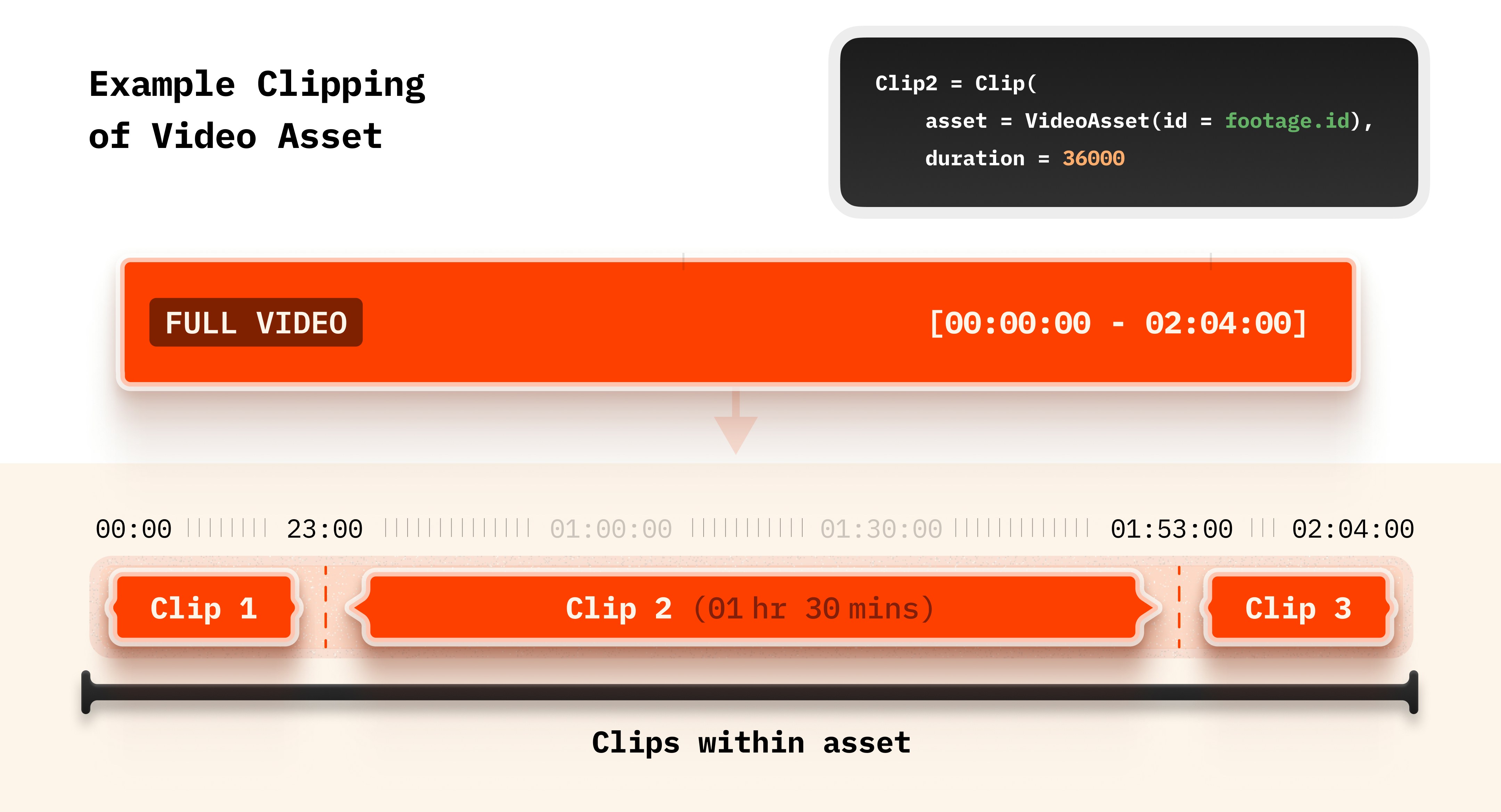 Every Clip must have an `asset` and a `duration`. Everything else is optional.
### Duration – How Long It Plays
`duration` is a float in seconds. It defines how long the clip plays on the timeline.
Real example:
```python Python theme={null}
from videodb import Clip
clip = Clip(
asset=video_asset,
duration=10
)
```
```javascript Node.js theme={null}
import { Clip } from 'videodb';
const clip = new Clip({
asset: videoAsset,
duration: 10
});
```
"Play this VideoAsset for 10 seconds."
**Key insight:** Duration is *independent* of the source file's length. If your source is 2 minutes but you set `duration=10`, only 10 seconds play (starting from `VideoAsset.start`).
### Fit – How It Scales to Canvas
When your asset’s aspect ratio doesn’t match the timeline’s, `fit` controls scaling behavior.
**Four modes:**
* `Fit.crop` (most common) – Fills the canvas completely, cropping edges if needed
* Use when: Filling the frame is priority, cropping is acceptable
* Example: 16:9 video on a 9:16 (vertical) timeline
* `Fit.contain` – Fits the entire asset inside the canvas, adding bars if needed
* Use when: Showing all content is priority, bars are acceptable
* Example: Preserving widescreen footage in a square format
* `Fit.cover` – Stretches to fill canvas (distortion possible)
* Use when: Artistic effect or abstract content
* `Fit.none` – Uses native pixel dimensions (no scaling)
* Use when: Precise pixel control needed (e.g., 1:1 pixel mapping)
Real example:
```python Python theme={null}
clip = Clip(
asset=video_asset,
duration=10,
fit=Fit.crop
)
```
```javascript Node.js theme={null}
import { Fit } from 'videodb';
const clip = new Clip({
asset: videoAsset,
duration: 10,
fit: Fit.crop
});
```
"Fill the canvas completely, crop edges if aspect ratios don't match."
### Position – Where It Appears
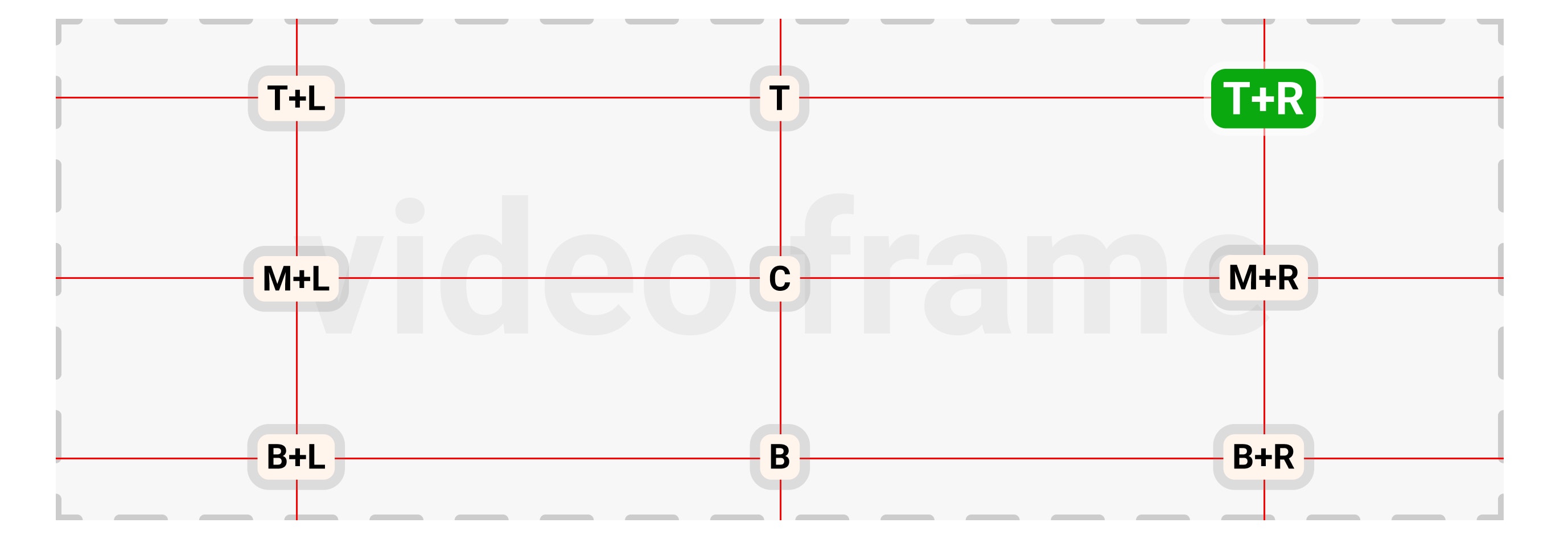
Position uses a 9-zone grid system:
```
top_left top top_right
center_left center center_right
bottom_left bottom bottom_right
```
Every Clip must have an `asset` and a `duration`. Everything else is optional.
### Duration – How Long It Plays
`duration` is a float in seconds. It defines how long the clip plays on the timeline.
Real example:
```python Python theme={null}
from videodb import Clip
clip = Clip(
asset=video_asset,
duration=10
)
```
```javascript Node.js theme={null}
import { Clip } from 'videodb';
const clip = new Clip({
asset: videoAsset,
duration: 10
});
```
"Play this VideoAsset for 10 seconds."
**Key insight:** Duration is *independent* of the source file's length. If your source is 2 minutes but you set `duration=10`, only 10 seconds play (starting from `VideoAsset.start`).
### Fit – How It Scales to Canvas
When your asset’s aspect ratio doesn’t match the timeline’s, `fit` controls scaling behavior.
**Four modes:**
* `Fit.crop` (most common) – Fills the canvas completely, cropping edges if needed
* Use when: Filling the frame is priority, cropping is acceptable
* Example: 16:9 video on a 9:16 (vertical) timeline
* `Fit.contain` – Fits the entire asset inside the canvas, adding bars if needed
* Use when: Showing all content is priority, bars are acceptable
* Example: Preserving widescreen footage in a square format
* `Fit.cover` – Stretches to fill canvas (distortion possible)
* Use when: Artistic effect or abstract content
* `Fit.none` – Uses native pixel dimensions (no scaling)
* Use when: Precise pixel control needed (e.g., 1:1 pixel mapping)
Real example:
```python Python theme={null}
clip = Clip(
asset=video_asset,
duration=10,
fit=Fit.crop
)
```
```javascript Node.js theme={null}
import { Fit } from 'videodb';
const clip = new Clip({
asset: videoAsset,
duration: 10,
fit: Fit.crop
});
```
"Fill the canvas completely, crop edges if aspect ratios don't match."
### Position – Where It Appears
Position uses a 9-zone grid system:
```
top_left top top_right
center_left center center_right
bottom_left bottom bottom_right
```
 Real example:
```python Python theme={null}
logo_clip = Clip(
asset=logo,
duration=30,
position=Position.top_right
)
```
```javascript Node.js theme={null}
import { Position } from 'videodb';
const logoClip = new Clip({
asset: logo,
duration: 30,
position: Position.topRight
});
```
"Place the logo in the top-right corner."
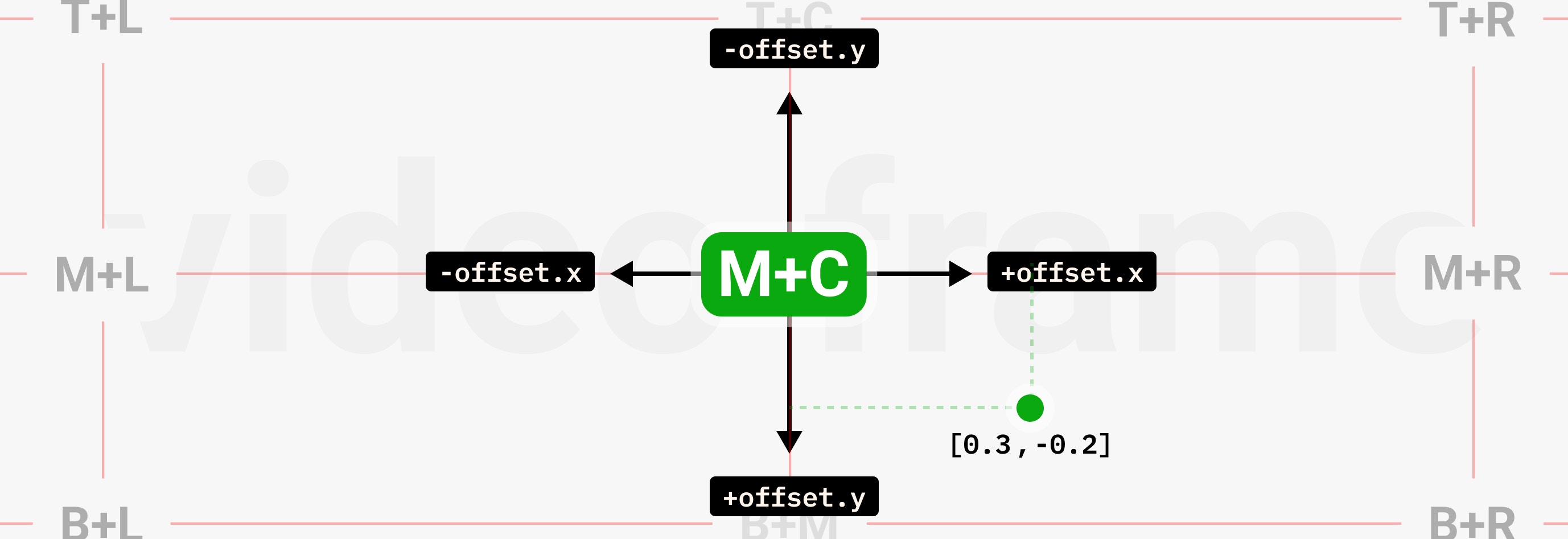
### Offset – For *fine-tuned* positioning
```python Python theme={null}
from videodb.editor import Offset
clip = Clip(
asset=logo,
duration=30,
position=Position.center,
offset=Offset(x=0.3, y=-0.2)
)
```
```javascript Node.js theme={null}
import { Offset } from 'videodb';
const clip = new Clip({
asset: logo,
duration: 30,
position: Position.center,
offset: new Offset({ x: 0.3, y: -0.2 })
});
```
This shifts the logo 30% right, 20% up from center.
Real example:
```python Python theme={null}
logo_clip = Clip(
asset=logo,
duration=30,
position=Position.top_right
)
```
```javascript Node.js theme={null}
import { Position } from 'videodb';
const logoClip = new Clip({
asset: logo,
duration: 30,
position: Position.topRight
});
```
"Place the logo in the top-right corner."
### Offset – For *fine-tuned* positioning
```python Python theme={null}
from videodb.editor import Offset
clip = Clip(
asset=logo,
duration=30,
position=Position.center,
offset=Offset(x=0.3, y=-0.2)
)
```
```javascript Node.js theme={null}
import { Offset } from 'videodb';
const clip = new Clip({
asset: logo,
duration: 30,
position: Position.center,
offset: new Offset({ x: 0.3, y: -0.2 })
});
```
This shifts the logo 30% right, 20% up from center.
 ### Scale – Size Adjustment
`scale` is a multiplier applied *after* fit. Default is `1.0`.
Real example:
```python Python theme={null}
pip_clip = Clip(
asset=overlay_video,
duration=15,
scale=0.3
)
```
```javascript Node.js theme={null}
const pipClip = new Clip({
asset: overlayVideo,
duration: 15,
scale: 0.3
});
```
"Shrink this video to 30% of its fitted size" (perfect for picture-in-picture).
### Opacity – Transparency
`opacity` ranges from `0.0` (invisible) to `1.0` (opaque).
Real example:
```python Python theme={null}
watermark_clip = Clip(
asset=logo,
duration=30,
opacity=0.6
)
```
```javascript Node.js theme={null}
const watermarkClip = new Clip({
asset: logo,
duration: 30,
opacity: 0.6
});
```
"Make the logo 60% opaque (semi-transparent)."
### Filter – Visual Effects
Apply color/blur effects:
```python Python theme={null}
from videodb.editor import Filter
clip = Clip(
asset=VideoAsset(id=video.id),
duration=10,
filter=Filter.greyscale
)
```
```javascript Node.js theme={null}
import { Filter } from 'videodb';
const clip = new Clip({
asset: new VideoAsset(video.id),
duration: 10,
filter: Filter.greyscale
});
```
Available filters: `greyscale`, `blur`, `boost` (saturation), `contrast`, `darken`, `lighten`, `muted`, `negative`.
| Filter | Effect |
| :----------------- | :--------------------------------------------------------- |
| `Filter.greyscale` | Removes all color, creating a black-and-white look |
| `Filter.blur` | Blurs the scene for artistic or privacy effects |
| `Filter.contrast` | Increases contrast, making darks darker and lights lighter |
| `Filter.darken` | Darkens the entire scene |
| `Filter.lighten` | Lightens the entire scene |
| `Filter.boost` | Boosts both contrast and saturation for vibrant colors |
| `Filter.muted` | Reduces saturation and contrast for a subdued look |
| `Filter.negative` | Inverts colors for a surreal, negative effect |
### Transition
Apply a transition effect at the start (`in_`) and/or end (`out`) of a clip:
```python Python theme={null}
from videodb.editor import Transition
clip = Clip(
asset=VideoAsset(id=video.id),
duration=10,
transition=Transition(
in_="fade",
out="fade",
duration=2
)
)
```
```javascript Node.js theme={null}
import { Transition } from 'videodb';
const clip = new Clip({
asset: new VideoAsset(video.id),
duration: 10,
transition: new Transition({
in: "fade",
out: "fade",
duration: 2
})
});
```
**Available transition types:**
| Value | Description |
| :--------------------- | :------------------------------- |
| `fade` | Fade to/from black |
| `reveal` | Slide reveal from edge |
| `shuffle` | Shuffle from center |
| `shuffle_top_right` | Shuffle from top-right corner |
| `shuffle_bottom_right` | Shuffle from bottom-right corner |
| `shuffle_bottom_left` | Shuffle from bottom-left corner |
| `shuffle_top_left` | Shuffle from top-left corner |
**Recap:** A Clip wraps an Asset and defines *how long* it plays (`duration`) and *how* it appears (fit, position, scale, opacity, filter, transition). Now let’s see how to place clips on the timeline.
## Layer 3: Tracks – Sequencing and Layering
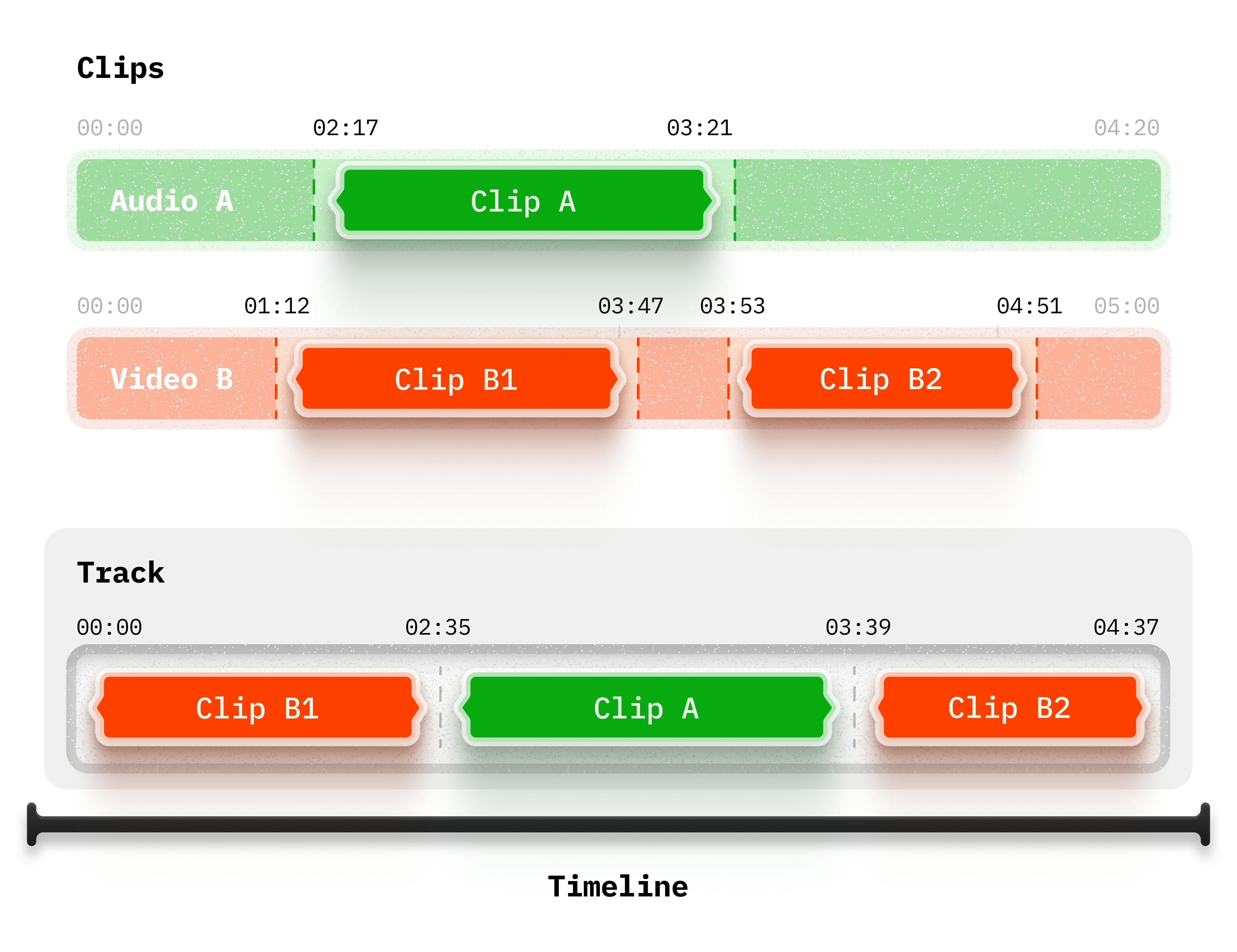
**Tracks are timeline lanes.** They control *when* clips play and *how* they stack.
### Scale – Size Adjustment
`scale` is a multiplier applied *after* fit. Default is `1.0`.
Real example:
```python Python theme={null}
pip_clip = Clip(
asset=overlay_video,
duration=15,
scale=0.3
)
```
```javascript Node.js theme={null}
const pipClip = new Clip({
asset: overlayVideo,
duration: 15,
scale: 0.3
});
```
"Shrink this video to 30% of its fitted size" (perfect for picture-in-picture).
### Opacity – Transparency
`opacity` ranges from `0.0` (invisible) to `1.0` (opaque).
Real example:
```python Python theme={null}
watermark_clip = Clip(
asset=logo,
duration=30,
opacity=0.6
)
```
```javascript Node.js theme={null}
const watermarkClip = new Clip({
asset: logo,
duration: 30,
opacity: 0.6
});
```
"Make the logo 60% opaque (semi-transparent)."
### Filter – Visual Effects
Apply color/blur effects:
```python Python theme={null}
from videodb.editor import Filter
clip = Clip(
asset=VideoAsset(id=video.id),
duration=10,
filter=Filter.greyscale
)
```
```javascript Node.js theme={null}
import { Filter } from 'videodb';
const clip = new Clip({
asset: new VideoAsset(video.id),
duration: 10,
filter: Filter.greyscale
});
```
Available filters: `greyscale`, `blur`, `boost` (saturation), `contrast`, `darken`, `lighten`, `muted`, `negative`.
| Filter | Effect |
| :----------------- | :--------------------------------------------------------- |
| `Filter.greyscale` | Removes all color, creating a black-and-white look |
| `Filter.blur` | Blurs the scene for artistic or privacy effects |
| `Filter.contrast` | Increases contrast, making darks darker and lights lighter |
| `Filter.darken` | Darkens the entire scene |
| `Filter.lighten` | Lightens the entire scene |
| `Filter.boost` | Boosts both contrast and saturation for vibrant colors |
| `Filter.muted` | Reduces saturation and contrast for a subdued look |
| `Filter.negative` | Inverts colors for a surreal, negative effect |
### Transition
Apply a transition effect at the start (`in_`) and/or end (`out`) of a clip:
```python Python theme={null}
from videodb.editor import Transition
clip = Clip(
asset=VideoAsset(id=video.id),
duration=10,
transition=Transition(
in_="fade",
out="fade",
duration=2
)
)
```
```javascript Node.js theme={null}
import { Transition } from 'videodb';
const clip = new Clip({
asset: new VideoAsset(video.id),
duration: 10,
transition: new Transition({
in: "fade",
out: "fade",
duration: 2
})
});
```
**Available transition types:**
| Value | Description |
| :--------------------- | :------------------------------- |
| `fade` | Fade to/from black |
| `reveal` | Slide reveal from edge |
| `shuffle` | Shuffle from center |
| `shuffle_top_right` | Shuffle from top-right corner |
| `shuffle_bottom_right` | Shuffle from bottom-right corner |
| `shuffle_bottom_left` | Shuffle from bottom-left corner |
| `shuffle_top_left` | Shuffle from top-left corner |
**Recap:** A Clip wraps an Asset and defines *how long* it plays (`duration`) and *how* it appears (fit, position, scale, opacity, filter, transition). Now let’s see how to place clips on the timeline.
## Layer 3: Tracks – Sequencing and Layering
**Tracks are timeline lanes.** They control *when* clips play and *how* they stack.
 ### The Track Object
A Track is a container you add clips to:
```python Python theme={null}
from videodb import Track
track = Track()
track.add_clip(0, clip) # Add clip at 0 seconds
```
```javascript Node.js theme={null}
import { Track } from 'videodb';
const track = new Track();
track.addClip(0, clip); // Add clip at 0 seconds
```
`track.add_clip(start, clip)` has two parameters:
* `start` (float, seconds) – When the clip begins on the timeline
* `clip` (Clip object) – The clip to add
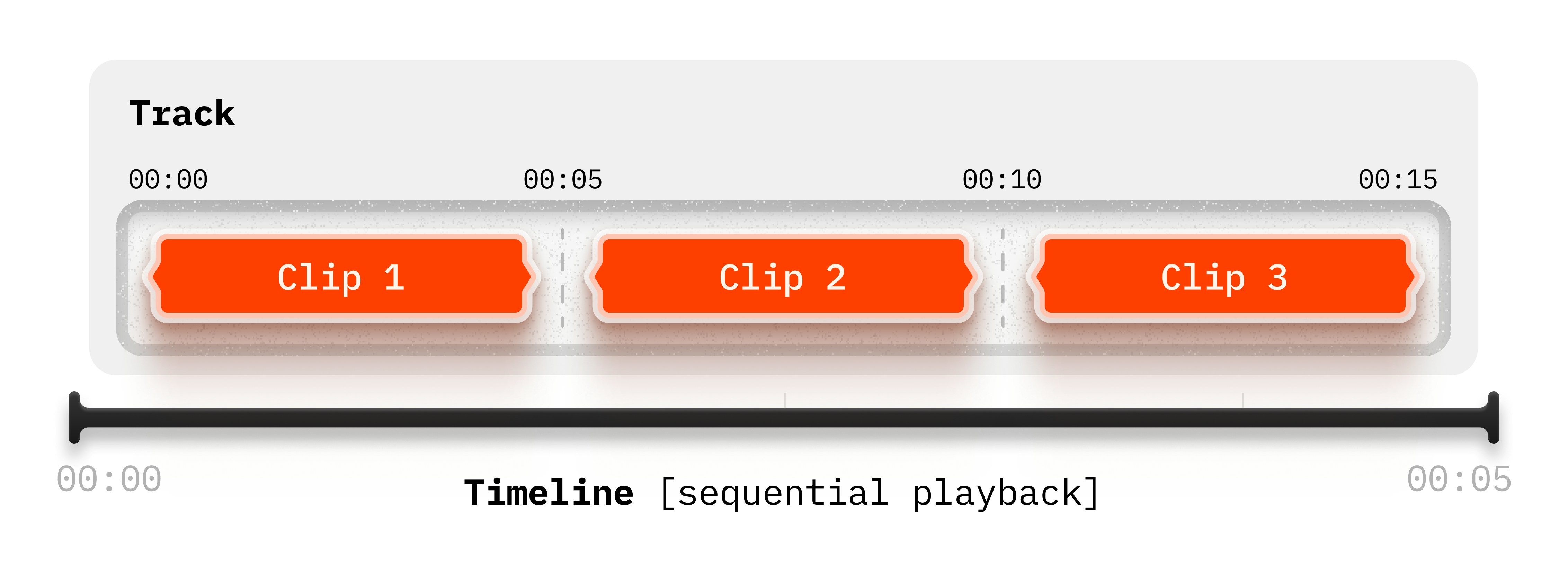
### Sequential Playback (Same Track)
Clips on the *same track* play **one after another**:
```python Python theme={null}
track = Track()
track.add_clip(0, clip1) # 0s-5s
track.add_clip(5, clip2) # 5s-10s
track.add_clip(10, clip3) # 10s-15s
```
```javascript Node.js theme={null}
const track = new Track();
track.addClip(0, clip1); // 0s-5s
track.addClip(5, clip2); // 5s-10s
track.addClip(10, clip3); // 10s-15s
```
This creates a montage - three clips in sequence.
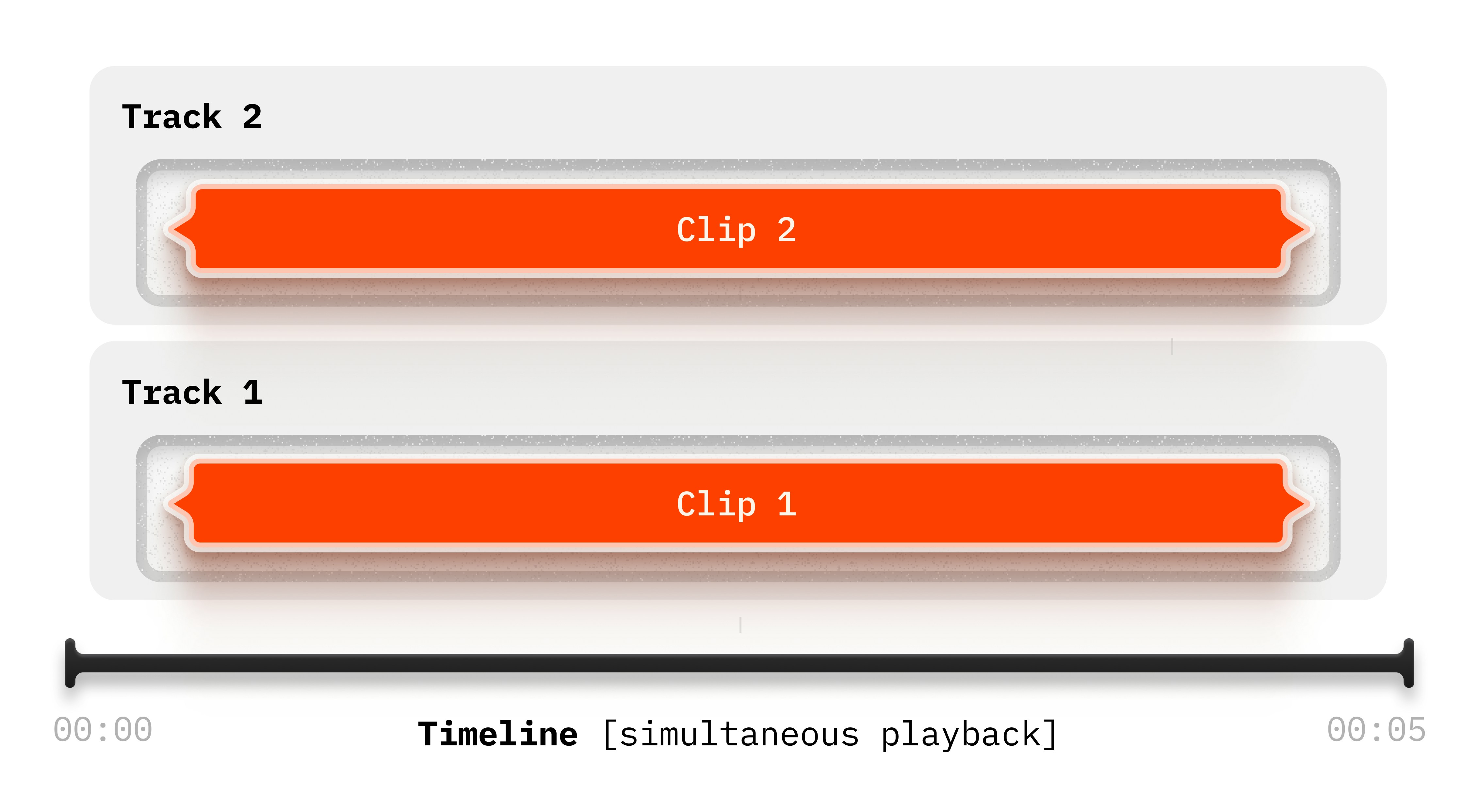
### Simultaneous Playback (Different Tracks)
Clips on *different tracks* at the same timestamp play **simultaneously**:
### The Track Object
A Track is a container you add clips to:
```python Python theme={null}
from videodb import Track
track = Track()
track.add_clip(0, clip) # Add clip at 0 seconds
```
```javascript Node.js theme={null}
import { Track } from 'videodb';
const track = new Track();
track.addClip(0, clip); // Add clip at 0 seconds
```
`track.add_clip(start, clip)` has two parameters:
* `start` (float, seconds) – When the clip begins on the timeline
* `clip` (Clip object) – The clip to add
### Sequential Playback (Same Track)
Clips on the *same track* play **one after another**:
```python Python theme={null}
track = Track()
track.add_clip(0, clip1) # 0s-5s
track.add_clip(5, clip2) # 5s-10s
track.add_clip(10, clip3) # 10s-15s
```
```javascript Node.js theme={null}
const track = new Track();
track.addClip(0, clip1); // 0s-5s
track.addClip(5, clip2); // 5s-10s
track.addClip(10, clip3); // 10s-15s
```
This creates a montage - three clips in sequence.
### Simultaneous Playback (Different Tracks)
Clips on *different tracks* at the same timestamp play **simultaneously**:
 ```python Python theme={null}
track1 = Track()
track1.add_clip(0, clip1) # First layer
track2 = Track()
track2.add_clip(0, clip2) # Second layer (plays at same time)
```
```javascript Node.js theme={null}
const track1 = new Track();
track1.addClip(0, clip1); // First layer
const track2 = new Track();
track2.addClip(0, clip2); // Second layer (plays at same time)
```
Both start at 0 seconds, so they play together. This is how you create layered compositions.
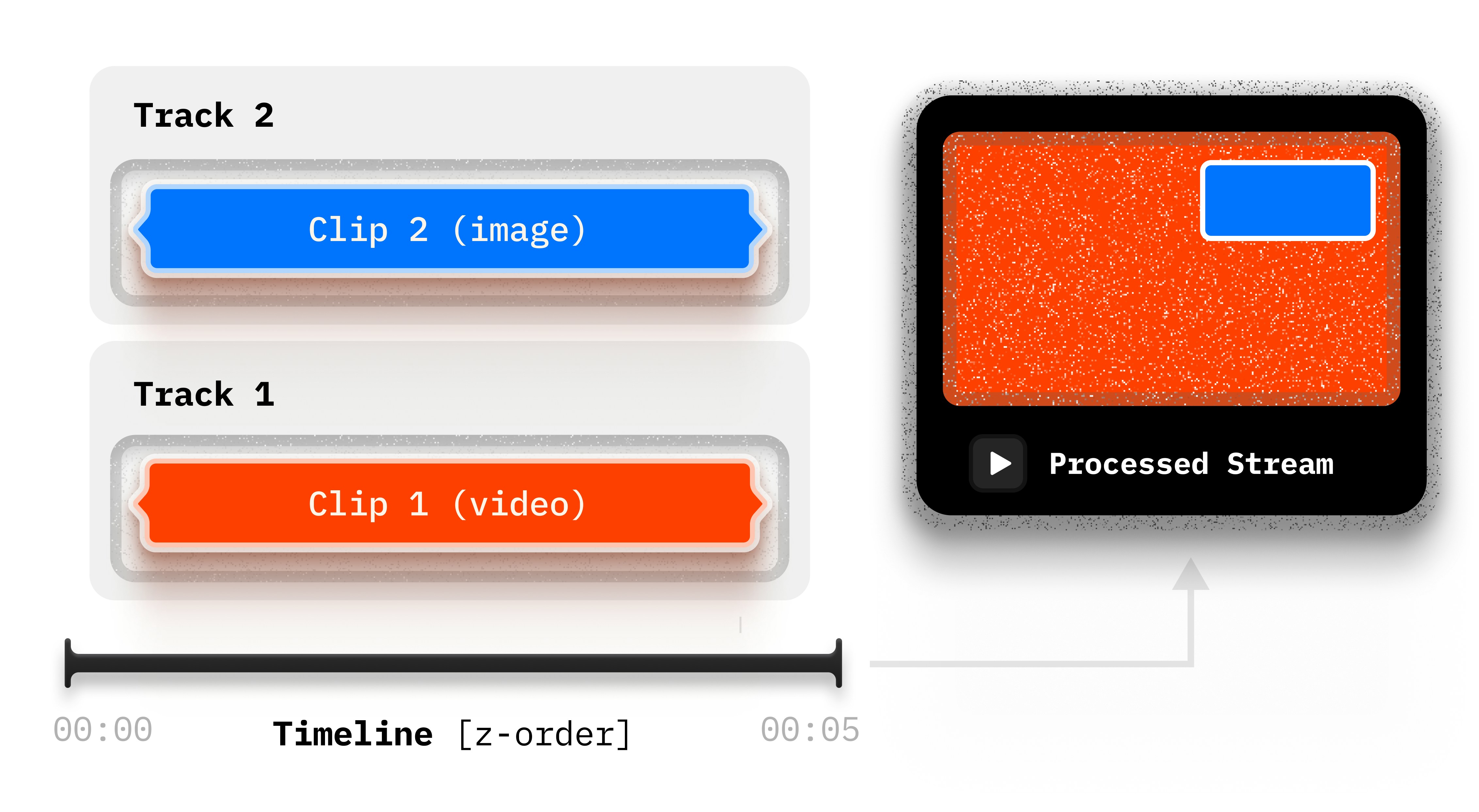
### Z-Order (Layering)
**Later tracks render** ***on top*** **of earlier tracks.**
```python Python theme={null}
track1 = Track()
track1.add_clip(0, clip1) # First layer
track2 = Track()
track2.add_clip(0, clip2) # Second layer (plays at same time)
```
```javascript Node.js theme={null}
const track1 = new Track();
track1.addClip(0, clip1); // First layer
const track2 = new Track();
track2.addClip(0, clip2); // Second layer (plays at same time)
```
Both start at 0 seconds, so they play together. This is how you create layered compositions.
### Z-Order (Layering)
**Later tracks render** ***on top*** **of earlier tracks.**
 ```python Python theme={null}
timeline.add_track(track1) # Bottom layer
timeline.add_track(track2) # Renders above track1
timeline.add_track(track3) # Renders above track2
```
```javascript Node.js theme={null}
timeline.addTrack(track1); // Bottom layer
timeline.addTrack(track2); // Renders above track1
timeline.addTrack(track3); // Renders above track2
```
This is how you create overlays: put background content on track1, overlays on track2.
### The “Double Start” Concept
There are **two separate “start” parameters**:
* `Asset.start` – Trims the *source file*
* `track.add_clip(start=...)` – Places clip on the *timeline*
Real example:
```python Python theme={null}
# Source video is 2 minutes long
video_asset = VideoAsset(
id=video.id,
start=30
) # Skip first 30s of source
clip = Clip(
asset=video_asset,
duration=40
) # Use 40s (from 0:30 to 1:10 of source)
track = Track()
track.add_clip(5, clip) # Place it at 5-second mark on timeline
```
```javascript Node.js theme={null}
// Source video is 2 minutes long
const videoAsset = new VideoAsset(video.id, {
start: 30
}); // Skip first 30s of source
const clip = new Clip({
asset: videoAsset,
duration: 40
}); // Use 40s (from 0:30 to 1:10 of source)
const track = new Track();
track.addClip(5, clip); // Place it at 5-second mark on timeline
```
Result: The timeline plays seconds 0:30-01:10 of the source video, but it appears at the 5-second mark of the final output.
**Why this matters:** You can extract any segment from source media and place it anywhere on the timeline, independently.
*For multi-track layering examples (video + music + captions + overlays), see the Advanced Clip Control guide and creative tutorials.*
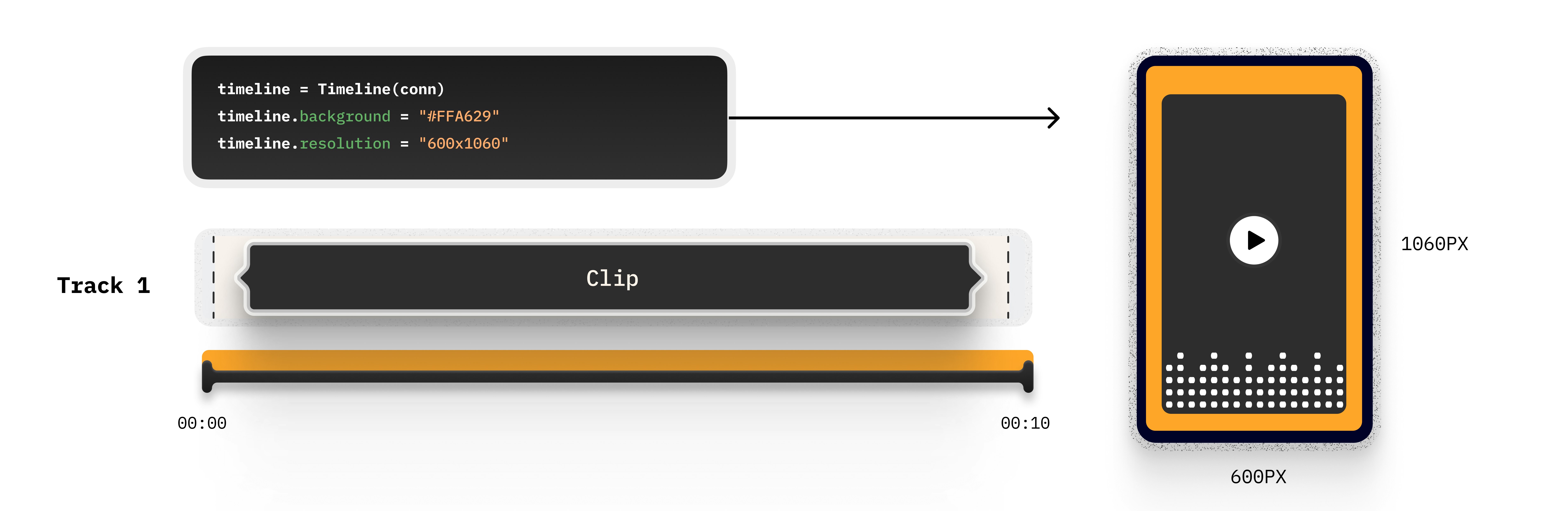
## Layer 4: Timeline – The Final Canvas
**Timeline is your export settings.** It defines resolution, background color, and combines all tracks.
```python Python theme={null}
timeline.add_track(track1) # Bottom layer
timeline.add_track(track2) # Renders above track1
timeline.add_track(track3) # Renders above track2
```
```javascript Node.js theme={null}
timeline.addTrack(track1); // Bottom layer
timeline.addTrack(track2); // Renders above track1
timeline.addTrack(track3); // Renders above track2
```
This is how you create overlays: put background content on track1, overlays on track2.
### The “Double Start” Concept
There are **two separate “start” parameters**:
* `Asset.start` – Trims the *source file*
* `track.add_clip(start=...)` – Places clip on the *timeline*
Real example:
```python Python theme={null}
# Source video is 2 minutes long
video_asset = VideoAsset(
id=video.id,
start=30
) # Skip first 30s of source
clip = Clip(
asset=video_asset,
duration=40
) # Use 40s (from 0:30 to 1:10 of source)
track = Track()
track.add_clip(5, clip) # Place it at 5-second mark on timeline
```
```javascript Node.js theme={null}
// Source video is 2 minutes long
const videoAsset = new VideoAsset(video.id, {
start: 30
}); // Skip first 30s of source
const clip = new Clip({
asset: videoAsset,
duration: 40
}); // Use 40s (from 0:30 to 1:10 of source)
const track = new Track();
track.addClip(5, clip); // Place it at 5-second mark on timeline
```
Result: The timeline plays seconds 0:30-01:10 of the source video, but it appears at the 5-second mark of the final output.
**Why this matters:** You can extract any segment from source media and place it anywhere on the timeline, independently.
*For multi-track layering examples (video + music + captions + overlays), see the Advanced Clip Control guide and creative tutorials.*
## Layer 4: Timeline – The Final Canvas
**Timeline is your export settings.** It defines resolution, background color, and combines all tracks.
 ```python Python theme={null}
from videodb.editor import Timeline
timeline = Timeline(conn) # conn is your VideoDB connection
timeline.background = "#808080" # Grey background (hex color)
timeline.resolution = "600x1060" # Custom resolution
```
```javascript Node.js theme={null}
import { Timeline } from 'videodb';
const timeline = new Timeline(conn); // conn is your VideoDB connection
timeline.background = "#808080"; // Grey background (hex color)
timeline.resolution = "600x1060"; // Custom resolution
```
### Resolution
Format: `"WIDTHxHEIGHT"`
Common presets:
* `"1280x720"` – 16:9 horizontal (YouTube, landscape)
* `"608x1080"` – 9:16 vertical (TikTok, Shorts, Reels)
* `"1080x1080"` – 1:1 square (Instagram feed)
* `"600x1060"` – Custom dimensions
### Background
The color shown behind/around clips when they don't fill the canvas (e.g., when using `Fit.contain`). Format: hex color string.
```python Python theme={null}
from videodb.editor import Timeline
timeline = Timeline(conn) # conn is your VideoDB connection
timeline.background = "#808080" # Grey background (hex color)
timeline.resolution = "600x1060" # Custom resolution
```
```javascript Node.js theme={null}
import { Timeline } from 'videodb';
const timeline = new Timeline(conn); // conn is your VideoDB connection
timeline.background = "#808080"; // Grey background (hex color)
timeline.resolution = "600x1060"; // Custom resolution
```
### Resolution
Format: `"WIDTHxHEIGHT"`
Common presets:
* `"1280x720"` – 16:9 horizontal (YouTube, landscape)
* `"608x1080"` – 9:16 vertical (TikTok, Shorts, Reels)
* `"1080x1080"` – 1:1 square (Instagram feed)
* `"600x1060"` – Custom dimensions
### Background
The color shown behind/around clips when they don't fill the canvas (e.g., when using `Fit.contain`). Format: hex color string.
 ### Adding Tracks
```python Python theme={null}
timeline.add_track(track)
```
```javascript Node.js theme={null}
timeline.addTrack(track);
```
For multiple tracks, order matters - this sets the z-order (layering). Later tracks render on top.
### Rendering
```python Python theme={null}
stream_url = timeline.generate_stream()
print(stream_url)
```
```javascript Node.js theme={null}
const streamUrl = await timeline.generateStream();
console.log(streamUrl);
```
This sends your composition to VideoDB's rendering engine and returns a playable stream URL.
### Complete example :
### Adding Tracks
```python Python theme={null}
timeline.add_track(track)
```
```javascript Node.js theme={null}
timeline.addTrack(track);
```
For multiple tracks, order matters - this sets the z-order (layering). Later tracks render on top.
### Rendering
```python Python theme={null}
stream_url = timeline.generate_stream()
print(stream_url)
```
```javascript Node.js theme={null}
const streamUrl = await timeline.generateStream();
console.log(streamUrl);
```
This sends your composition to VideoDB's rendering engine and returns a playable stream URL.
### Complete example :
 ```python Python theme={null}
from videodb.editor import Timeline, Track, Clip, VideoAsset
# Create timeline
timeline = Timeline(conn)
timeline.background = "#FFA629"
timeline.resolution = "600x1060"
# Create asset
video_asset = VideoAsset(id=video.id, start=0, volume=1)
# Wrap in clip
clip = Clip(asset=video_asset, duration=10)
# Add to track
track = Track()
track.add_clip(0, clip)
# Add track to timeline
timeline.add_track(track)
# Render
stream_url = timeline.generate_stream()
```
```javascript Node.js theme={null}
import { Timeline, Track, Clip, VideoAsset } from 'videodb';
// Create timeline
const timeline = new Timeline(conn);
timeline.background = "#FFA629";
timeline.resolution = "600x1060";
// Create asset
const videoAsset = new VideoAsset(video.id, { start: 0, volume: 1 });
// Wrap in clip
const clip = new Clip({ asset: videoAsset, duration: 10 });
// Add to track
const track = new Track();
track.addClip(0, clip);
// Add track to timeline
timeline.addTrack(track);
// Render
const streamUrl = await timeline.generateStream();
```
You've just composed your first video programmatically: one video asset playing for 10 seconds. This simple pattern scales to any complexity - just add more assets, clips, and tracks.
### Concept Guides (Detailed Explanations)
These guides expand on specific concepts with design principles, edge cases, and best practices:
Deep dive into aspect ratios, 9-zone positioning, offset mechanics, and framing patterns
Complete explanation of the "double start" concept with formulas and multi-clip workflows
Animation styles, ASS color format, positioning, accessibility, and styling best practices
Filters, transitions, opacity patterns, and complex multi-layer compositions
## What You Can Build
See real-world applications of timeline composition and programmatic video creation:
Transform music into viral vertical clips with AI backgrounds and synced lyrics
Turn analytics into cinematic recaps with dynamic animations
Build complete faceless videos with AI scripts and voiceovers
Automatically extract highlights with AI move detection
## Get Started
See all concepts in action with hands-on examples and interactive code.
```python Python theme={null}
from videodb.editor import Timeline, Track, Clip, VideoAsset
# Create timeline
timeline = Timeline(conn)
timeline.background = "#FFA629"
timeline.resolution = "600x1060"
# Create asset
video_asset = VideoAsset(id=video.id, start=0, volume=1)
# Wrap in clip
clip = Clip(asset=video_asset, duration=10)
# Add to track
track = Track()
track.add_clip(0, clip)
# Add track to timeline
timeline.add_track(track)
# Render
stream_url = timeline.generate_stream()
```
```javascript Node.js theme={null}
import { Timeline, Track, Clip, VideoAsset } from 'videodb';
// Create timeline
const timeline = new Timeline(conn);
timeline.background = "#FFA629";
timeline.resolution = "600x1060";
// Create asset
const videoAsset = new VideoAsset(video.id, { start: 0, volume: 1 });
// Wrap in clip
const clip = new Clip({ asset: videoAsset, duration: 10 });
// Add to track
const track = new Track();
track.addClip(0, clip);
// Add track to timeline
timeline.addTrack(track);
// Render
const streamUrl = await timeline.generateStream();
```
You've just composed your first video programmatically: one video asset playing for 10 seconds. This simple pattern scales to any complexity - just add more assets, clips, and tracks.
### Concept Guides (Detailed Explanations)
These guides expand on specific concepts with design principles, edge cases, and best practices:
Deep dive into aspect ratios, 9-zone positioning, offset mechanics, and framing patterns
Complete explanation of the "double start" concept with formulas and multi-clip workflows
Animation styles, ASS color format, positioning, accessibility, and styling best practices
Filters, transitions, opacity patterns, and complex multi-layer compositions
## What You Can Build
See real-world applications of timeline composition and programmatic video creation:
Transform music into viral vertical clips with AI backgrounds and synced lyrics
Turn analytics into cinematic recaps with dynamic animations
Build complete faceless videos with AI scripts and voiceovers
Automatically extract highlights with AI move detection
## Get Started
See all concepts in action with hands-on examples and interactive code.