> ## Documentation Index
> Fetch the complete documentation index at: https://docs.videodb.io/llms.txt
> Use this file to discover all available pages before exploring further.
# Keyword Search
> Create custom video compilations by searching for keywords and phrases
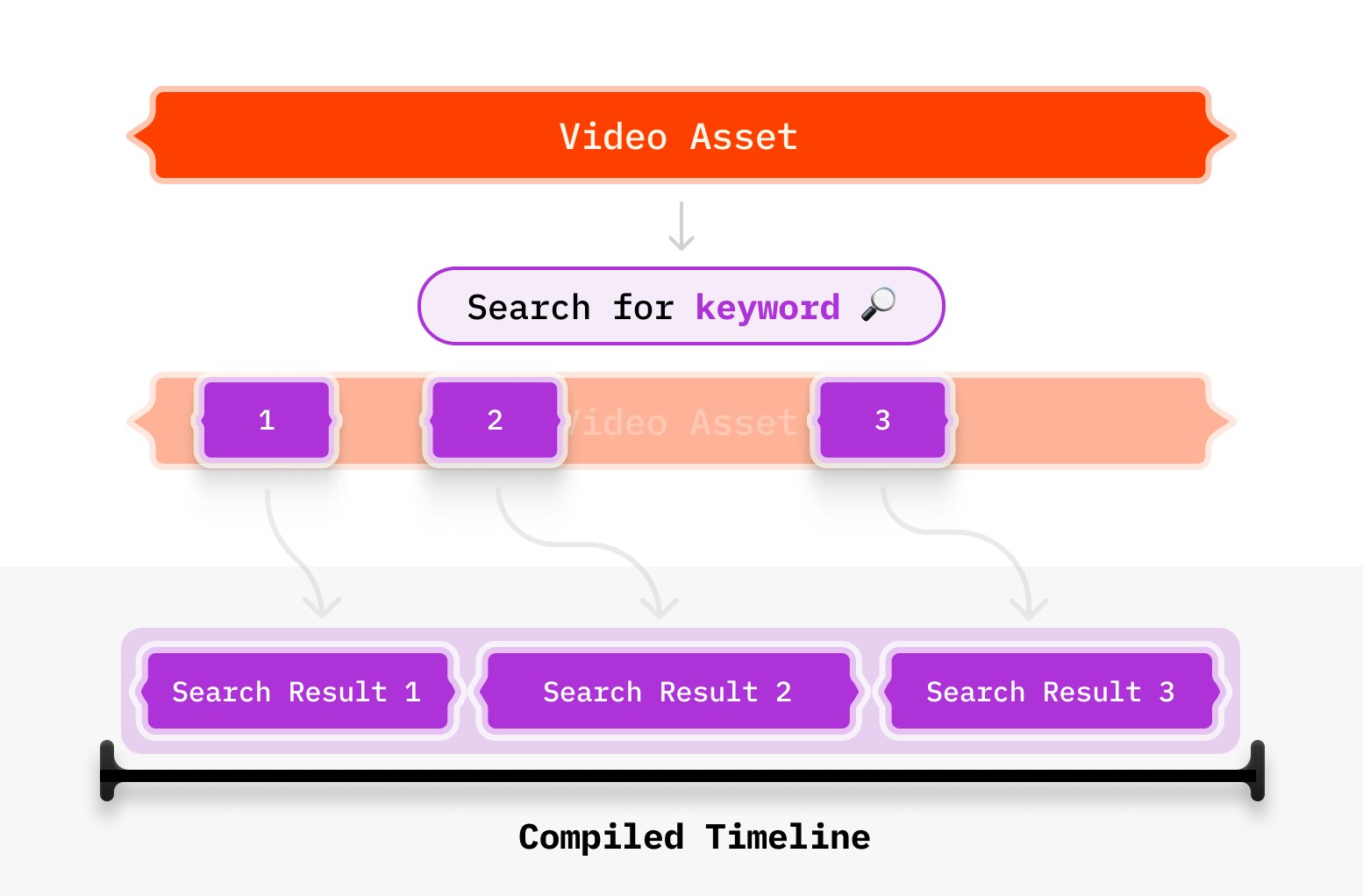
From an hour long video, want to create a fun compilation of every moment Mark Zuckerberg says 'metaverse'?
## Overview
In this tutorial, let's explore the powerful functionality of Keyword Search in VideoDB. This feature enables users to efficiently locate any keyword or phrase within their video assets, streamlining the process of content discovery.
## Setup
### Installing packages
```python Python theme={null}
!pip install videodb
```
```javascript Node.js theme={null}
npm install videodb
```
### API Keys
Before proceeding, ensure access to [VideoDB](https://videodb.io)
Get your API key from [VideoDB Console](https://console.videodb.io/). ( Free for first 50 uploads, No credit card required)
## Steps
### Step 1: Connect to VideoDB
Begin by establishing a connection to VideoDB using your API key
```python Python theme={null}
import videodb
# Set your API key
api_key = "your_api_key"
# Connect to VideoDB
conn = videodb.connect(api_key=api_key)
coll = conn.get_collection()
```
```javascript Node.js theme={null}
import { connect } from 'videodb';
const conn = await connect({ apiKey: process.env.VIDEO_DB_API_KEY });
const coll = await conn.getCollection();
```
### Step 2: Upload Video
Upload the video to your VideoDB collection. You can upload the video asset from your local device or from a YouTube URL to upload the video from its source. This works as the base video for all the Keyword Search queries.
```python Python theme={null}
video = coll.upload(url="https://www.youtube.com/watch?v=Uvufun6xer8")
video.play()
```
```javascript Node.js theme={null}
const video = await coll.uploadURL({
url: "https://www.youtube.com/watch?v=Uvufun6xer8"
});
console.log(video.playerUrl);
```
You can upload from your local file system too by passing `file_path` in `upload()`
For this tutorial, we'll run a Keyword Search on the following video:
### Step 3: Index Spoken Words
Index the spoken words in your video to enable accurate keyword search.
```python Python theme={null}
video.index_spoken_words()
```
```javascript Node.js theme={null}
await video.indexSpokenWords();
```
### Step 4: Search for any keyword
Utilize the keyword search by using `video.search()` method with following parameters.
* pass search query in `query` parameter
* pass `SearchType.keyword` in `search_type`
> Note: You will need to import `SearchType` first to enable this function
```python Python theme={null}
from videodb import SearchType
results = video.search(query='metaverse', search_type=SearchType.keyword)
```
```javascript Node.js theme={null}
import { SearchTypeValues } from 'videodb';
const results = await video.search({
query: 'metaverse',
searchType: SearchTypeValues.keyword
});
```
### Step 5: Preview and Share
Preview your video with a compilation of all the clips matching your search query. You can access the stream link alongside the preview to share the Keyword Search result with others.
```python Python theme={null}
results.play()
```
```javascript Node.js theme={null}
console.log(results.playerUrl);
```
### Bonus: Refining Keyword Search results by adding padding
Some keyword search results/ compilations may appear slightly choppy, or the cuts may feel abrupt. We can solve this issue by using VideoDB’s padding controls. Here’s how it works:
The resulting shots can be made smoother by including a little more context from before and after the matching timestamps. That's exactly what padding controls enable:
Using the Editor SDK's `Track` and `Clip` pattern, we can create a timeline with padding:
1. Create a timeline and track using `Timeline()` and `Track()`
2. Create a `VideoAsset` with `id` and `start` parameters (where `start` is adjusted by subtracting padding)
3. Wrap each asset in a `Clip` with the appropriate duration (adding padding on both ends)
4. Add clips to the track sequentially using `track.add_clip(start_time, clip)`
```python Python theme={null}
from videodb import play_stream
from videodb.editor import Timeline, Track, Clip, VideoAsset
timeline = Timeline(conn)
# Add padding for smoother cuts
padding = 0.4
# Create main track
track = Track()
seeker = 0
# Compile Video from search results
for shot in results.shots:
start_with_padding = max(0, shot.start - padding)
duration = (shot.end + padding) - start_with_padding
asset = VideoAsset(id=shot.video_id, start=start_with_padding)
clip = Clip(asset=asset, duration=duration)
track.add_clip(seeker, clip)
seeker += duration
timeline.add_track(track)
stream_url = timeline.generate_stream()
play_stream(stream_url)
```
```javascript Node.js theme={null}
import { EditorTimeline, Track, Clip, EditorVideoAsset } from 'videodb';
const timeline = new EditorTimeline(conn);
// Add padding for smoother cuts
const padding = 0.4;
// Create main track
const track = new Track();
let seeker = 0;
// Compile Video from search results
for (const shot of results.shots) {
const startWithPadding = Math.max(0, shot.start - padding);
const duration = (shot.end + padding) - startWithPadding;
const asset = new EditorVideoAsset({
id: shot.videoId,
start: startWithPadding
});
const clip = new Clip({ asset, duration });
track.addClip(seeker, clip);
seeker += duration;
}
timeline.addTrack(track);
const streamUrl = await timeline.generateStream();
console.log(streamUrl);
```
### Here's the result for the same video, but improved using padding control.
### Conclusion
Keyword Search in VideoDB empowers users to extract valuable insights from their video assets with ease.
## More Examples
Checkout these fun experiments with Keyword search 👇
1. So basically it's "basically"
2. The untold story of "generative" AI
## Next Steps
Open the complete implementation in Google Colab with all code examples.
## Related Tutorials
Combine spoken word and visual search for comprehensive queries
Extract clips featuring specific characters or people instantly

 ## Setup
### Installing packages
## Setup
### Installing packages