> ## Documentation Index
> Fetch the complete documentation index at: https://docs.videodb.io/llms.txt
> Use this file to discover all available pages before exploring further.
# Character Extraction
> Extract clips featuring specific people or characters
 ## Overview
We all have our favorite characters in TV shows the we love. What if you could create the clips of the scenes when they appear? You can use it in your content creation, analysis workflow or simply observe how they talk, dress or act in an episode.
**VideoDB** is the database for your AI applicaitons and enables it with ease. No need for fancy editing software or waiting around – you get to view your video right away. ⚡️
## Overview
We all have our favorite characters in TV shows the we love. What if you could create the clips of the scenes when they appear? You can use it in your content creation, analysis workflow or simply observe how they talk, dress or act in an episode.
**VideoDB** is the database for your AI applicaitons and enables it with ease. No need for fancy editing software or waiting around – you get to view your video right away. ⚡️
 ## Workflow
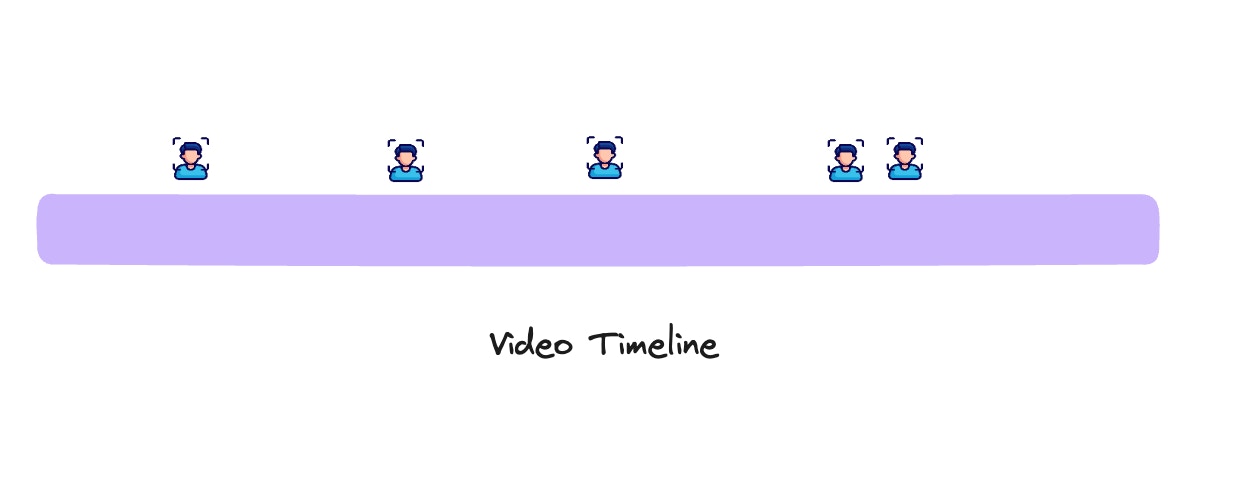
Here's a [15-minute video](https://www.youtube.com/watch?v=NNAgJ5p4CIY) from HBO's Silicon Valley show. We've already identified instances when `Gilfoyle`, `Jian Yang`, `Erlich`, `Jared`, `Dinesh` and `Richard` make appearances with the help of [AWS Rekognition API](https://docs.aws.amazon.com/rekognition/).
We've pinpointed the timestamps of the characters' appearances in the video and mapped out where they appear in `persons_data`
Next, we'll upload the video to VideoDB and use these timestamps to clip the video. It's as easy as querying a database⚡️
## Setup
### Installing VideoDB in your environment
`VideoDB` is available as a [python package](https://pypi.org/project/videodb) and [npm package](https://www.npmjs.com/package/videodb)
```python Python theme={null}
!pip install videodb
```
```javascript Node.js theme={null}
npm install videodb
```
###
### Setting Up a connection
To connect to **VideoDB**, simply create a `Connection` object.
This can be done by either providing your VideoDB API key directly to the constructor or by setting the `VIDEO_DB_API_KEY` environment variable with your API key.
Get your API key from [VideoDB Console](https://console.videodb.io/). ( Free for first 50 uploads, No credit card required)
```python Python theme={null}
from videodb import connect
conn = connect(api_key="YOUR_API_KEY")
```
```javascript Node.js theme={null}
import { connect } from 'videodb';
const conn = await connect({ apiKey: process.env.VIDEO_DB_API_KEY });
```
## Timeline Data
Here's the json we compiled with the timestamps of appearances of each character. The **persons\_data** contains **timeline** for each character, representing the timestamps of shots when they were present in the video.
```json theme={null}
persons_data = {
"gilfoyle": {
"timeline": [[0, 4], [160, 185], [330, 347], [370, 378], [382, 391], [391, 400]]
},
"jianyang": {
"timeline": [[232, 271], [271, 283], [284, 308], [312, 343], [398, 407]]
},
"erlich": {
"timeline": [[0, 8], [12, 30], [31, 41], [44, 52], [56, 97], [97, 124], [147, 165], [185, 309], [316, 336], [336, 345], [348, 398], [398, 408]]
},
"jarad": {
"timeline": [[0, 15], [148, 165], [182, 190], [343, 355], [358, 381], [384, 393]]
},
"dinesh": {
"timeline": [[0, 4], [160, 189], [343, 354], [374, 383], [392, 402]]
},
"richard": {
"timeline": [[12, 41], [127, 137], [137, 154], [159, 167], [360, 378], [381, 398], [399, 407]]
}
}
```
## Creating instant clips using VideoDB
The idea behind `VideoDB` is straightforward: it functions as a database specifically for videos. Similar to uploading tables or JSON data to a standard database, you can upload your videos to VideoDB.
You can also retrieve your videos through queries, much like accessing regular data from a database.
You can pass timeline of each person in `video.generate_stream()` and get the streaming link almost instantly.
```python Python theme={null}
v_url = "https://www.youtube.com/watch?v=NNAgJ5p4CIY"
coll = conn.get_collection()
video = coll.upload(url=v_url)
# store stream of each person
for person in persons_data:
person_data = persons_data[person]
stream_link = video.generate_stream(timeline=person_data["timeline"])
person_data["clip"] = stream_link
```
```javascript Node.js theme={null}
const vUrl = "https://www.youtube.com/watch?v=NNAgJ5p4CIY";
const coll = await conn.getCollection();
const video = await coll.uploadURL({ url: vUrl });
// store stream of each person
for (const person in personsData) {
const personData = personsData[person];
const streamLink = await video.generateStream({ timeline: personData.timeline });
personData.clip = streamLink;
}
```
## Results
We effortlessly uploaded our video to VideoDB and generated clips for each character in just 30 seconds.
Now, it's time to check out our results.
Let's take a look at a clip featuring `Erlich Bachman` (feel free to choose your favorite character by changing the name field below)
```python Python theme={null}
from videodb import play_stream
name = "erlich"
play_stream(persons_data[name]["clip"])
```
```javascript Node.js theme={null}
const name = "erlich";
console.log(personsData[name].clip);
```
Open the complete implementation in Google Colab with all code examples.
## Related Tutorials
Create custom compilations by searching for spoken words
Combine visual and spoken content for comprehensive queries
## Workflow
Here's a [15-minute video](https://www.youtube.com/watch?v=NNAgJ5p4CIY) from HBO's Silicon Valley show. We've already identified instances when `Gilfoyle`, `Jian Yang`, `Erlich`, `Jared`, `Dinesh` and `Richard` make appearances with the help of [AWS Rekognition API](https://docs.aws.amazon.com/rekognition/).
We've pinpointed the timestamps of the characters' appearances in the video and mapped out where they appear in `persons_data`
Next, we'll upload the video to VideoDB and use these timestamps to clip the video. It's as easy as querying a database⚡️
## Setup
### Installing VideoDB in your environment
`VideoDB` is available as a [python package](https://pypi.org/project/videodb) and [npm package](https://www.npmjs.com/package/videodb)
```python Python theme={null}
!pip install videodb
```
```javascript Node.js theme={null}
npm install videodb
```
###
### Setting Up a connection
To connect to **VideoDB**, simply create a `Connection` object.
This can be done by either providing your VideoDB API key directly to the constructor or by setting the `VIDEO_DB_API_KEY` environment variable with your API key.
Get your API key from [VideoDB Console](https://console.videodb.io/). ( Free for first 50 uploads, No credit card required)
```python Python theme={null}
from videodb import connect
conn = connect(api_key="YOUR_API_KEY")
```
```javascript Node.js theme={null}
import { connect } from 'videodb';
const conn = await connect({ apiKey: process.env.VIDEO_DB_API_KEY });
```
## Timeline Data
Here's the json we compiled with the timestamps of appearances of each character. The **persons\_data** contains **timeline** for each character, representing the timestamps of shots when they were present in the video.
```json theme={null}
persons_data = {
"gilfoyle": {
"timeline": [[0, 4], [160, 185], [330, 347], [370, 378], [382, 391], [391, 400]]
},
"jianyang": {
"timeline": [[232, 271], [271, 283], [284, 308], [312, 343], [398, 407]]
},
"erlich": {
"timeline": [[0, 8], [12, 30], [31, 41], [44, 52], [56, 97], [97, 124], [147, 165], [185, 309], [316, 336], [336, 345], [348, 398], [398, 408]]
},
"jarad": {
"timeline": [[0, 15], [148, 165], [182, 190], [343, 355], [358, 381], [384, 393]]
},
"dinesh": {
"timeline": [[0, 4], [160, 189], [343, 354], [374, 383], [392, 402]]
},
"richard": {
"timeline": [[12, 41], [127, 137], [137, 154], [159, 167], [360, 378], [381, 398], [399, 407]]
}
}
```
## Creating instant clips using VideoDB
The idea behind `VideoDB` is straightforward: it functions as a database specifically for videos. Similar to uploading tables or JSON data to a standard database, you can upload your videos to VideoDB.
You can also retrieve your videos through queries, much like accessing regular data from a database.
You can pass timeline of each person in `video.generate_stream()` and get the streaming link almost instantly.
```python Python theme={null}
v_url = "https://www.youtube.com/watch?v=NNAgJ5p4CIY"
coll = conn.get_collection()
video = coll.upload(url=v_url)
# store stream of each person
for person in persons_data:
person_data = persons_data[person]
stream_link = video.generate_stream(timeline=person_data["timeline"])
person_data["clip"] = stream_link
```
```javascript Node.js theme={null}
const vUrl = "https://www.youtube.com/watch?v=NNAgJ5p4CIY";
const coll = await conn.getCollection();
const video = await coll.uploadURL({ url: vUrl });
// store stream of each person
for (const person in personsData) {
const personData = personsData[person];
const streamLink = await video.generateStream({ timeline: personData.timeline });
personData.clip = streamLink;
}
```
## Results
We effortlessly uploaded our video to VideoDB and generated clips for each character in just 30 seconds.
Now, it's time to check out our results.
Let's take a look at a clip featuring `Erlich Bachman` (feel free to choose your favorite character by changing the name field below)
```python Python theme={null}
from videodb import play_stream
name = "erlich"
play_stream(persons_data[name]["clip"])
```
```javascript Node.js theme={null}
const name = "erlich";
console.log(personsData[name].clip);
```
Open the complete implementation in Google Colab with all code examples.
## Related Tutorials
Create custom compilations by searching for spoken words
Combine visual and spoken content for comprehensive queries