> ## Documentation Index
> Fetch the complete documentation index at: https://docs.videodb.io/llms.txt
> Use this file to discover all available pages before exploring further.
# Intro/Outro
> Add opening and closing sequences to videos
## Overview
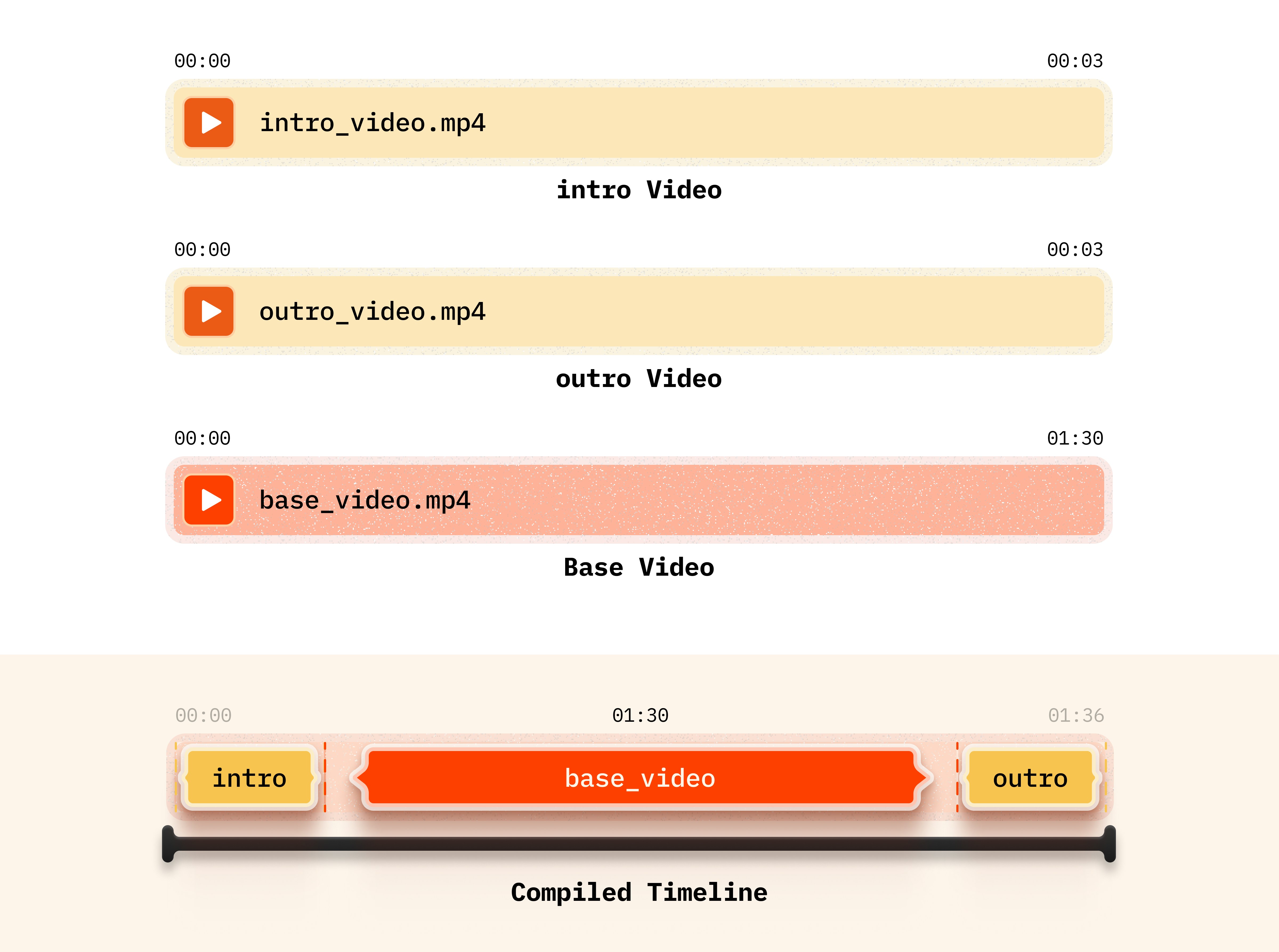
Imagine a virtual DJ mixing deck where you can seamlessly blend multiple videos into one epic timeline. Whether you're adding flashy intros, snazzy outros, or even splicing in some behind-the-scenes footage, this feature lets you take your video content to the next level!
In this tutorial, let's dive into how you can seamlessly integrate multiple videos onto a single timeline. Users can easily enhance their video content by appending intros, outros, or supplementary segments. The workflow is straightforward and scalable.
## Setup
### Installing packages
```python Python theme={null}
!pip install videodb
```
```javascript Node.js theme={null}
npm install videodb
```
### API Keys
Before proceeding, ensure access to VideoDB. Get your API key from [VideoDB Console](https://console.videodb.io/). Free for first 50 uploads, no credit card required.
## Implementation
### Step 1: Connect VideoDB
Connect to VideoDB using your API key to establish a session for uploading and manipulating video files. Import the necessary modules from VideoDB library to access functionalities.
```python Python theme={null}
import videodb
# Set your API key
api_key = "your_api_key"
# Connect to VideoDB
conn = videodb.connect(api_key=api_key)
coll = conn.get_collection()
```
```javascript Node.js theme={null}
import { connect } from 'videodb';
const conn = await connect({ apiKey: process.env.VIDEO_DB_API_KEY });
const coll = await conn.getCollection();
```
### Step 2: Upload Videos
First, we upload an introductory video ("intro.mp4") and an outro video ("outro.mp4") into the collection, followed by the base video ("sugar\_craving.mp4"). This approach allows us to efficiently reuse the intro and outro videos for other projects by simply changing the base video, thereby saving time and streamlining the video creation process.
You can upload the video asset from your local device or from a YouTube URL to upload the video from its source.
```python Python theme={null}
intro = coll.upload(url="https://github.com/video-db/videodb-cookbook-assets/raw/main/videos/intro.mp4")
outro = coll.upload(url="https://github.com/video-db/videodb-cookbook-assets/raw/main/videos/outro.mp4")
base = coll.upload(url="https://github.com/video-db/videodb-cookbook-assets/raw/main/videos/sugar_craving.mp4")
```
```javascript Node.js theme={null}
const intro = await coll.uploadURL({
url: "https://github.com/video-db/videodb-cookbook-assets/raw/main/videos/intro.mp4"
});
const outro = await coll.uploadURL({
url: "https://github.com/video-db/videodb-cookbook-assets/raw/main/videos/outro.mp4"
});
const base = await coll.uploadURL({
url: "https://github.com/video-db/videodb-cookbook-assets/raw/main/videos/sugar_craving.mp4"
});
```
### Step 3: Create assets
Adjust parameters for all the video assets according to your preference, such as start and end times.
```python Python theme={null}
from videodb.editor import VideoAsset
intro_asset = VideoAsset(id=intro.id, start=0)
intro_duration = 3
base_asset = VideoAsset(id=base.id, start=0)
base_duration = 90
outro_asset = VideoAsset(id=outro.id, start=0)
outro_duration = 3
```
```javascript Node.js theme={null}
import { EditorVideoAsset } from 'videodb';
const introAsset = new EditorVideoAsset({ id: intro.id, start: 0 });
const introDuration = 3;
const baseAsset = new EditorVideoAsset({ id: base.id, start: 0 });
const baseDuration = 90;
const outroAsset = new EditorVideoAsset({ id: outro.id, start: 0 });
const outroDuration = 3;
```
### Step 4: Create timeline
Create video assets using the Editor SDK. The `start` parameter in `VideoAsset` trims from the beginning, and the `duration` in `Clip` controls how long the clip plays.
```python Python theme={null}
from videodb.editor import Timeline, Track, Clip
timeline = Timeline(conn)
# Create main track
track = Track()
# Add intro clip at 0 seconds
intro_clip = Clip(asset=intro_asset, duration=intro_duration)
track.add_clip(0, intro_clip)
# Add base video clip after intro
base_clip = Clip(asset=base_asset, duration=base_duration)
track.add_clip(intro_duration, base_clip)
# Add outro clip after base video
outro_clip = Clip(asset=outro_asset, duration=outro_duration)
track.add_clip(intro_duration + base_duration, outro_clip)
timeline.add_track(track)
```
```javascript Node.js theme={null}
import { EditorTimeline, Track, Clip } from 'videodb';
const timeline = new EditorTimeline(conn);
// Create main track
const track = new Track();
// Add intro clip at 0 seconds
const introClip = new Clip({ asset: introAsset, duration: introDuration });
track.addClip(0, introClip);
// Add base video clip after intro
const baseClip = new Clip({ asset: baseAsset, duration: baseDuration });
track.addClip(introDuration, baseClip);
// Add outro clip after base video
const outroClip = new Clip({ asset: outroAsset, duration: outroDuration });
track.addClip(introDuration + baseDuration, outroClip);
timeline.addTrack(track);
```
### Step 5: Play the generated video stream
```python Python theme={null}
from videodb import play_stream
stream = timeline.generate_stream()
play_stream(stream)
```
```javascript Node.js theme={null}
const stream = await timeline.generateStream();
console.log(stream);
```
Preview the video to ensure it functions correctly. Once satisfied, generate a stream of the video and share the link for others to view and enjoy this wholesome creation!
**Output:**
## Conclusion
You can now efficiently manipulate and assemble video elements, resulting in professional-quality compositions.
Open the complete implementation in Google Colab with all code examples.
## Related Tutorials
Add logos, text overlays, and custom styling to your videos
Learn the fundamentals of VideoDB's programmable video editing

 ## Setup
### Installing packages
## Setup
### Installing packages