> ## Documentation Index
> Fetch the complete documentation index at: https://docs.videodb.io/llms.txt
> Use this file to discover all available pages before exploring further.
# Dynamic Ads
> Insert advertisements into video streams
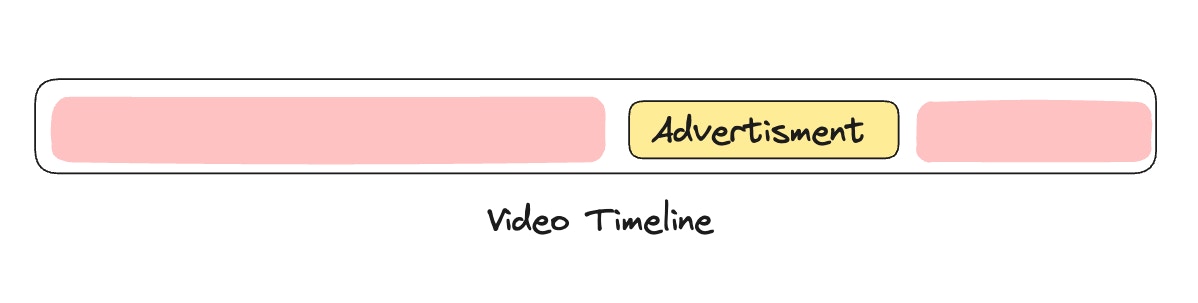
 Video files are not very flexible if we want to change the flow and insert another video at a certain place. Imagine putting a video advertisement on your video stream for your customers. You don't need to edit the video file and create another one.
VideoDB simplifies it for you. It gives you power to build contextualize Ad insertion and personalized Ad insertion on your videos.
Video files are not very flexible if we want to change the flow and insert another video at a certain place. Imagine putting a video advertisement on your video stream for your customers. You don't need to edit the video file and create another one.
VideoDB simplifies it for you. It gives you power to build contextualize Ad insertion and personalized Ad insertion on your videos.
 ## Setup
### Installing VideoDB in your environment
`VideoDB` is available as a [python package](https://pypi.org/project/videodb)
```python Python theme={null}
!pip install videodb
```
```javascript Node.js theme={null}
npm install videodb
```
### Setting Up a connection to VideoDB
To connect to VideoDB, simply create a Connection object, and connect to the collection. This can be done by either providing your VideoDB API key directly to the constructor or by setting the `VIDEO_DB_API_KEY` environment variable with your API key. Get your API key from [VideoDB Console](https://console.videodb.io/). Free for first 50 uploads, no credit card required.
```python Python theme={null}
import videodb
# Connect to VideoDB
api_key = "your_api_key"
conn = videodb.connect(api_key=api_key)
coll = conn.get_collection()
```
```javascript Node.js theme={null}
import { connect } from 'videodb';
const conn = await connect({ apiKey: process.env.VIDEO_DB_API_KEY });
const coll = await conn.getCollection();
```
## Uploading the videos to VideoDB
Let's have a base video as Sam Altman's conversation on OpenAI and AGI. We'll choose another video to insert in this 👉 (let's get IBM's Advertisement). We are going to insert the Ad video into the base video at a specific timestamp.
For this, we will need to first upload both the videos to `VideoDB`.
```python Python theme={null}
base_video_url = "https://www.youtube.com/watch?v=e1cf58VWzt8"
ad_video_url = "https://www.youtube.com/watch?v=jtwduf2lh08"
base_video = coll.upload(url=base_video_url)
ad_video = coll.upload(url=ad_video_url)
```
```javascript Node.js theme={null}
const baseVideoUrl = "https://www.youtube.com/watch?v=e1cf58VWzt8";
const adVideoUrl = "https://www.youtube.com/watch?v=jtwduf2lh08";
const baseVideo = await coll.uploadURL({ url: baseVideoUrl });
const adVideo = await coll.uploadURL({ url: adVideoUrl });
```
## Inserting Ad in our Base Video
Now that we have both videos uploaded, we'll use VideoDB's Editor SDK to create a timeline with multiple clips. We'll break the base video into segments and insert the ad at the 10-second mark:
1. **Clip 1**: Base video from 0 to 10 seconds
2. **Clip 2**: Full ad video
3. **Clip 3**: Base video continues from 10 seconds to end
```python Python theme={null}
from videodb.editor import Timeline, Track, Clip, VideoAsset
from videodb import play_stream
# Define timing
insert_time = 10 # Insert ad at 10 seconds
base_duration = int(base_video.length)
ad_duration = int(ad_video.length)
# Create timeline and track
timeline = Timeline(conn)
track = Track()
# Clip 1: Base video from 0 to insert_time
clip1 = Clip(
asset=VideoAsset(id=base_video.id),
duration=insert_time)
track.add_clip(0, clip1)
# Clip 2: Full ad video
clip2 = Clip(
asset=VideoAsset(id=ad_video.id),
duration=ad_duration)
track.add_clip(insert_time, clip2)
# Clip 3: Base video continues from insert_time to end
clip3 = Clip(
asset=VideoAsset(id=base_video.id, start=insert_time),
duration=base_duration - insert_time)
track.add_clip(insert_time + ad_duration, clip3)
# Generate stream
timeline.add_track(track)
stream_link = timeline.generate_stream()
```
```javascript Node.js theme={null}
import { EditorTimeline, Track, Clip, EditorVideoAsset } from 'videodb';
// Define timing
const insertTime = 10; // Insert ad at 10 seconds
const baseDuration = parseInt(baseVideo.length);
const adDuration = parseInt(adVideo.length);
// Create timeline and track
const timeline = new EditorTimeline(conn);
const track = new Track();
// Clip 1: Base video from 0 to insertTime
const clip1 = new Clip({
asset: new EditorVideoAsset({ id: baseVideo.id }),
duration: insertTime
});
track.addClip(0, clip1);
// Clip 2: Full ad video
const clip2 = new Clip({
asset: new EditorVideoAsset({ id: adVideo.id }),
duration: adDuration
});
track.addClip(insertTime, clip2);
// Clip 3: Base video continues from insertTime to end
const clip3 = new Clip({
asset: new EditorVideoAsset({ id: baseVideo.id, start: insertTime }),
duration: baseDuration - insertTime
});
track.addClip(insertTime + adDuration, clip3);
// Generate stream
timeline.addTrack(track);
const streamLink = await timeline.generateStream();
```
`stream_link` is a streaming link that offers instant playback capability – no rendering necessary. ⚡️
## Play Modified Video
Let's check the results:
```python Python theme={null}
from videodb import play_stream
play_stream(stream_link)
```
```javascript Node.js theme={null}
console.log(streamLink);
```
You can generate as many streaming links as needed for your use-case. This gives you power to personalize your video content for each user.
## No Limitations
The inserted video doesn't have to be solely for advertisements; it can be a disclaimer or announcement for the person watching the video. Furthermore, your stream is dynamic, enabling you to adjust the timestamp and insertion video based on your business logic.
This is an incredible power to have for any product hosting videos. Let's master video content manipulation like a pro!
Open the complete implementation in Google Colab with all code examples.
## Related Tutorials
Add logos, watermarks, and graphics
Generate multiple versions from one source
## Setup
### Installing VideoDB in your environment
`VideoDB` is available as a [python package](https://pypi.org/project/videodb)
```python Python theme={null}
!pip install videodb
```
```javascript Node.js theme={null}
npm install videodb
```
### Setting Up a connection to VideoDB
To connect to VideoDB, simply create a Connection object, and connect to the collection. This can be done by either providing your VideoDB API key directly to the constructor or by setting the `VIDEO_DB_API_KEY` environment variable with your API key. Get your API key from [VideoDB Console](https://console.videodb.io/). Free for first 50 uploads, no credit card required.
```python Python theme={null}
import videodb
# Connect to VideoDB
api_key = "your_api_key"
conn = videodb.connect(api_key=api_key)
coll = conn.get_collection()
```
```javascript Node.js theme={null}
import { connect } from 'videodb';
const conn = await connect({ apiKey: process.env.VIDEO_DB_API_KEY });
const coll = await conn.getCollection();
```
## Uploading the videos to VideoDB
Let's have a base video as Sam Altman's conversation on OpenAI and AGI. We'll choose another video to insert in this 👉 (let's get IBM's Advertisement). We are going to insert the Ad video into the base video at a specific timestamp.
For this, we will need to first upload both the videos to `VideoDB`.
```python Python theme={null}
base_video_url = "https://www.youtube.com/watch?v=e1cf58VWzt8"
ad_video_url = "https://www.youtube.com/watch?v=jtwduf2lh08"
base_video = coll.upload(url=base_video_url)
ad_video = coll.upload(url=ad_video_url)
```
```javascript Node.js theme={null}
const baseVideoUrl = "https://www.youtube.com/watch?v=e1cf58VWzt8";
const adVideoUrl = "https://www.youtube.com/watch?v=jtwduf2lh08";
const baseVideo = await coll.uploadURL({ url: baseVideoUrl });
const adVideo = await coll.uploadURL({ url: adVideoUrl });
```
## Inserting Ad in our Base Video
Now that we have both videos uploaded, we'll use VideoDB's Editor SDK to create a timeline with multiple clips. We'll break the base video into segments and insert the ad at the 10-second mark:
1. **Clip 1**: Base video from 0 to 10 seconds
2. **Clip 2**: Full ad video
3. **Clip 3**: Base video continues from 10 seconds to end
```python Python theme={null}
from videodb.editor import Timeline, Track, Clip, VideoAsset
from videodb import play_stream
# Define timing
insert_time = 10 # Insert ad at 10 seconds
base_duration = int(base_video.length)
ad_duration = int(ad_video.length)
# Create timeline and track
timeline = Timeline(conn)
track = Track()
# Clip 1: Base video from 0 to insert_time
clip1 = Clip(
asset=VideoAsset(id=base_video.id),
duration=insert_time)
track.add_clip(0, clip1)
# Clip 2: Full ad video
clip2 = Clip(
asset=VideoAsset(id=ad_video.id),
duration=ad_duration)
track.add_clip(insert_time, clip2)
# Clip 3: Base video continues from insert_time to end
clip3 = Clip(
asset=VideoAsset(id=base_video.id, start=insert_time),
duration=base_duration - insert_time)
track.add_clip(insert_time + ad_duration, clip3)
# Generate stream
timeline.add_track(track)
stream_link = timeline.generate_stream()
```
```javascript Node.js theme={null}
import { EditorTimeline, Track, Clip, EditorVideoAsset } from 'videodb';
// Define timing
const insertTime = 10; // Insert ad at 10 seconds
const baseDuration = parseInt(baseVideo.length);
const adDuration = parseInt(adVideo.length);
// Create timeline and track
const timeline = new EditorTimeline(conn);
const track = new Track();
// Clip 1: Base video from 0 to insertTime
const clip1 = new Clip({
asset: new EditorVideoAsset({ id: baseVideo.id }),
duration: insertTime
});
track.addClip(0, clip1);
// Clip 2: Full ad video
const clip2 = new Clip({
asset: new EditorVideoAsset({ id: adVideo.id }),
duration: adDuration
});
track.addClip(insertTime, clip2);
// Clip 3: Base video continues from insertTime to end
const clip3 = new Clip({
asset: new EditorVideoAsset({ id: baseVideo.id, start: insertTime }),
duration: baseDuration - insertTime
});
track.addClip(insertTime + adDuration, clip3);
// Generate stream
timeline.addTrack(track);
const streamLink = await timeline.generateStream();
```
`stream_link` is a streaming link that offers instant playback capability – no rendering necessary. ⚡️
## Play Modified Video
Let's check the results:
```python Python theme={null}
from videodb import play_stream
play_stream(stream_link)
```
```javascript Node.js theme={null}
console.log(streamLink);
```
You can generate as many streaming links as needed for your use-case. This gives you power to personalize your video content for each user.
## No Limitations
The inserted video doesn't have to be solely for advertisements; it can be a disclaimer or announcement for the person watching the video. Furthermore, your stream is dynamic, enabling you to adjust the timestamp and insertion video based on your business logic.
This is an incredible power to have for any product hosting videos. Let's master video content manipulation like a pro!
Open the complete implementation in Google Colab with all code examples.
## Related Tutorials
Add logos, watermarks, and graphics
Generate multiple versions from one source